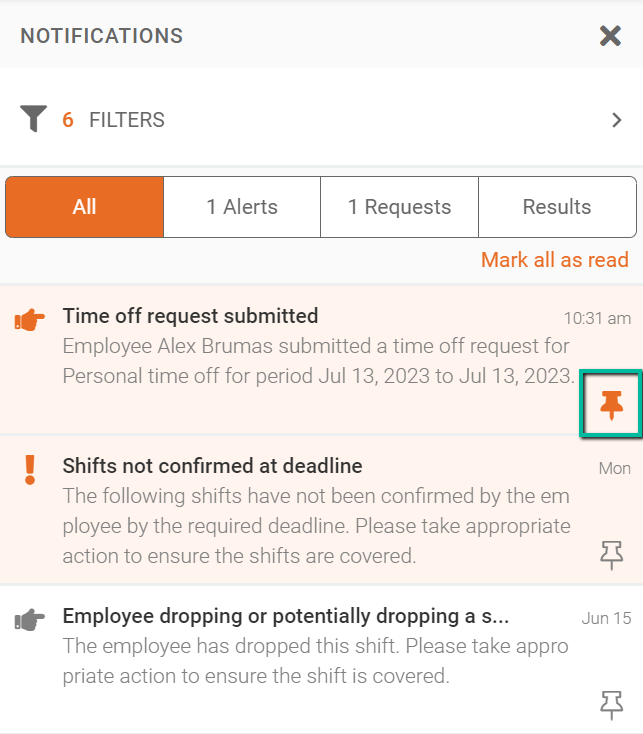
Notifications Panel for Admins
The Notifications Panel helps admins stay informed of important scheduling updates, alerts, and requests, allowing for quick action and better oversight of daily operations.
Find the Notifications Panel
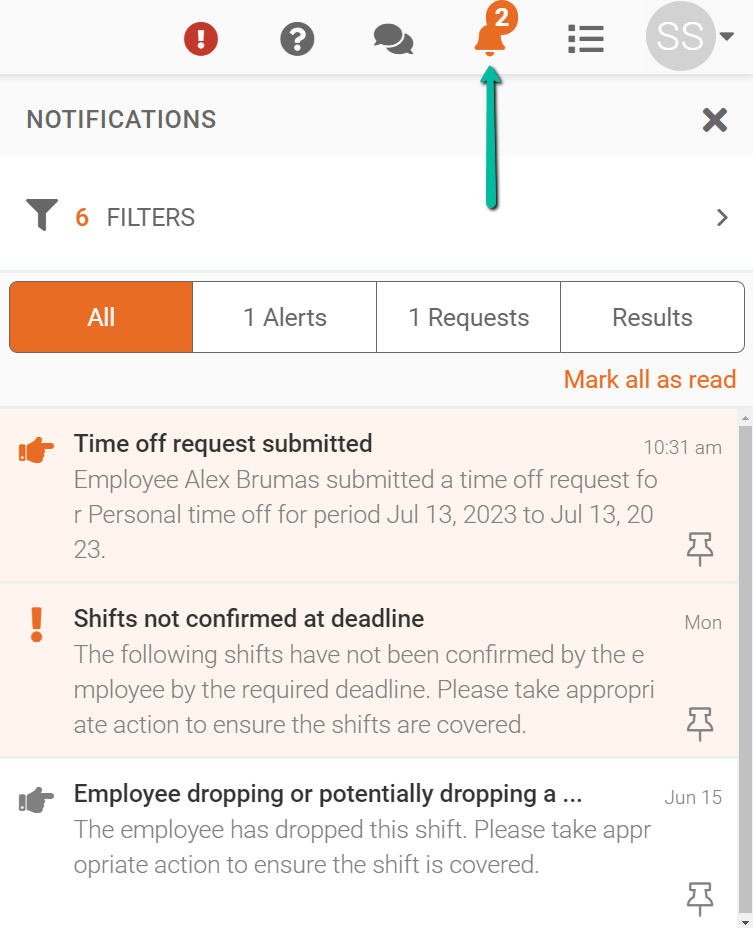
The Notifications Panel is located in the top-right corner of Schedule Xpress. The Notifications Icon remains visible as you navigate throughout the system.

How the Notifications Panel Works
The Notifications Panel acts as a centralized hub where administrators can view and manage scheduling-related updates, including alerts, requests, and system activity.
To open the Notifications Panel, click the Notifications Icon.

Configuring Notification Filters
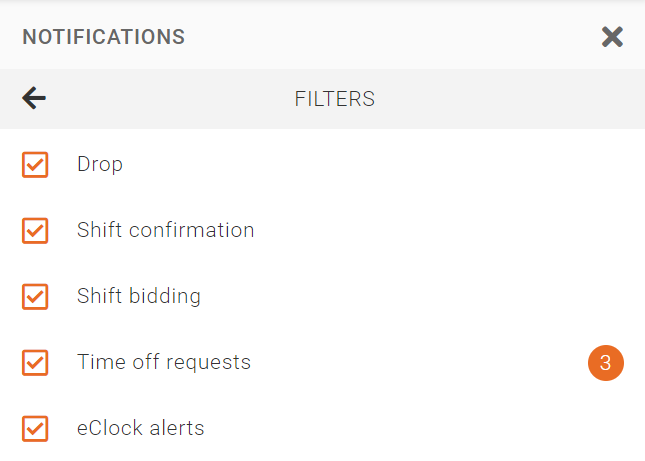
You can customize which notifications you receive by selecting from the following notification types:
- Shift Drops
- Shift Confirmations
- Shift Bidding
- Time Off Requests
- eClock Alerts
- Expiring Qualifications
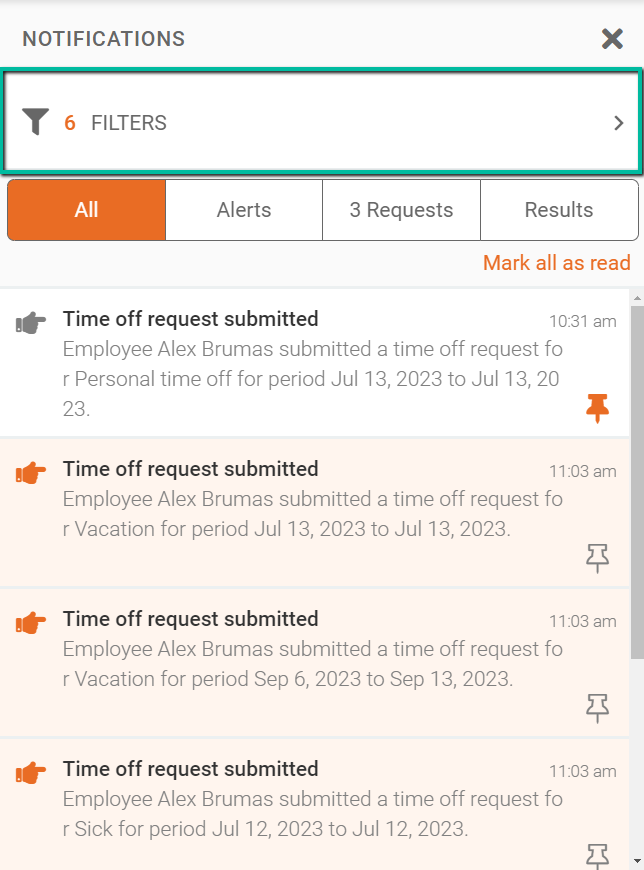
You can select multiple notification types to ensure you receive the updates most relevant to your role.
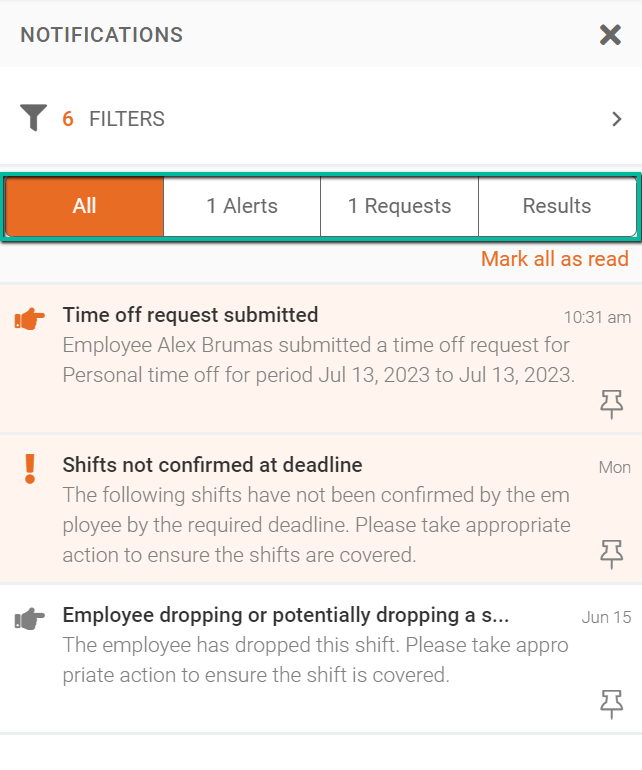
Notification Categories
Notifications can be filtered within the panel using the following categories:
- All – Displays all notifications.
- Alerts – Includes eClock Alerts and Shift Confirmations.
- Requests – Includes Time Off Requests and Shift Drop Requests.
View Notification Details
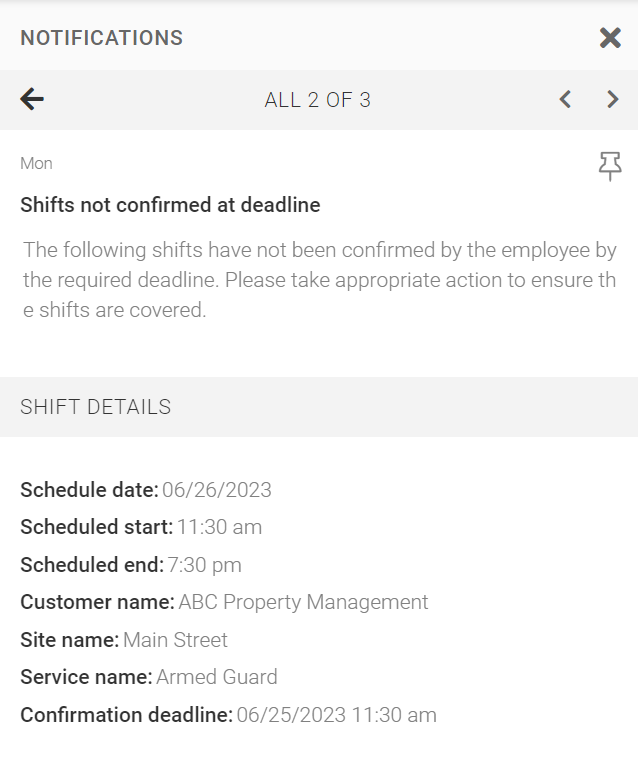
Click any notification to view additional details.
To return to the main notifications list, select the Back Arrow located in the top-left corner of the notification details screen.
Unread Notifications
The Notifications Icon displays the number of unread notifications, making it easy to identify when new updates require your attention.
Mark Notifications as Read
Notifications are automatically marked as read when opened.
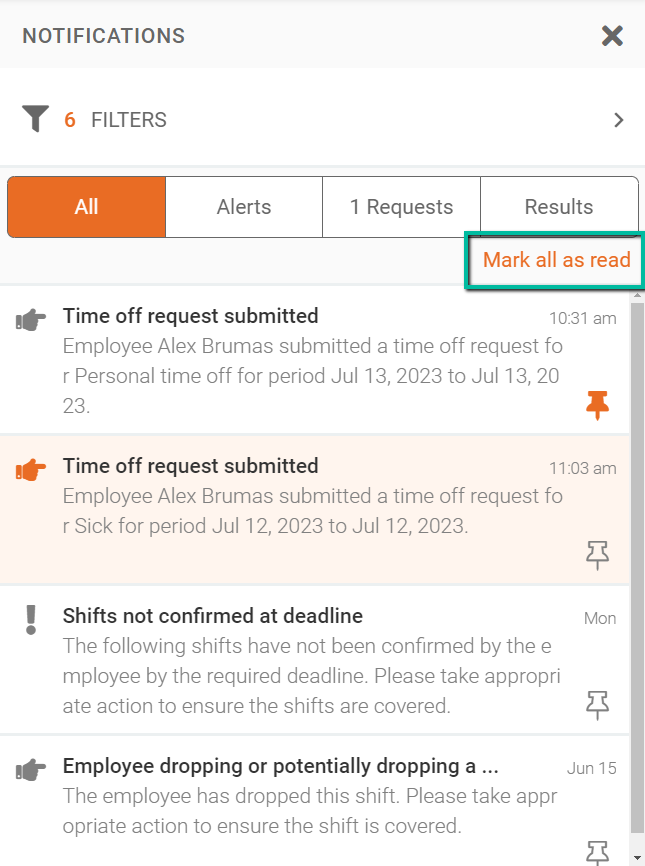
To mark all notifications as read at once, select Mark All As Read within the Notifications Panel.
Pin Notifications
You can pin important notifications to keep them at the top of the Notifications Panel for quick access.
To pin a notification, select the Pin Icon on the desired notification. Pinned notifications remain at the top of the panel until they are unpinned.