
What's New? - October 2026
We are excited to share the latest updates to the Celayix platform, rolled out in October 2026. These updates are designed to improve functionality, enhance user experience, and ensure smoother workflows. Below, you'll find the details of the newest features and improvements.
Assign Employee Managers to Route Notifications and Requests
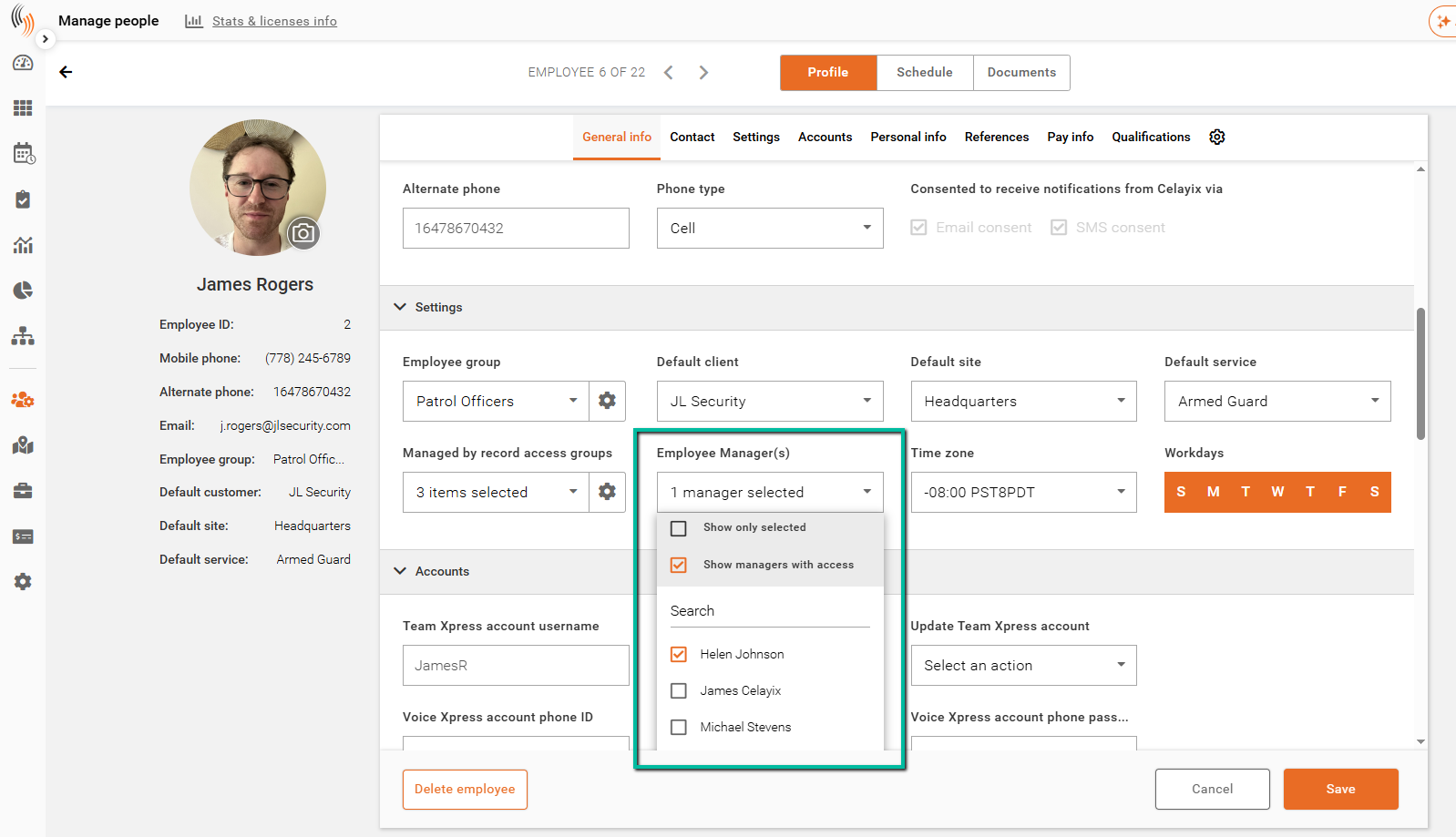
You can now assign one or more Employee Managers to each employee, helping direct supported notifications to the people responsible for taking action. Once managers are assigned, configure notifications for each feature to keep them informed about their team.
Assign Employee Managers
Open the employee’s profile in Manage People and locate Employee Manager(s) in the Settings section. Select one or more managers, then click Save. These assignments determine which managers receive notifications when employee-manager routing is enabled.
Time Off Notifications and Requests
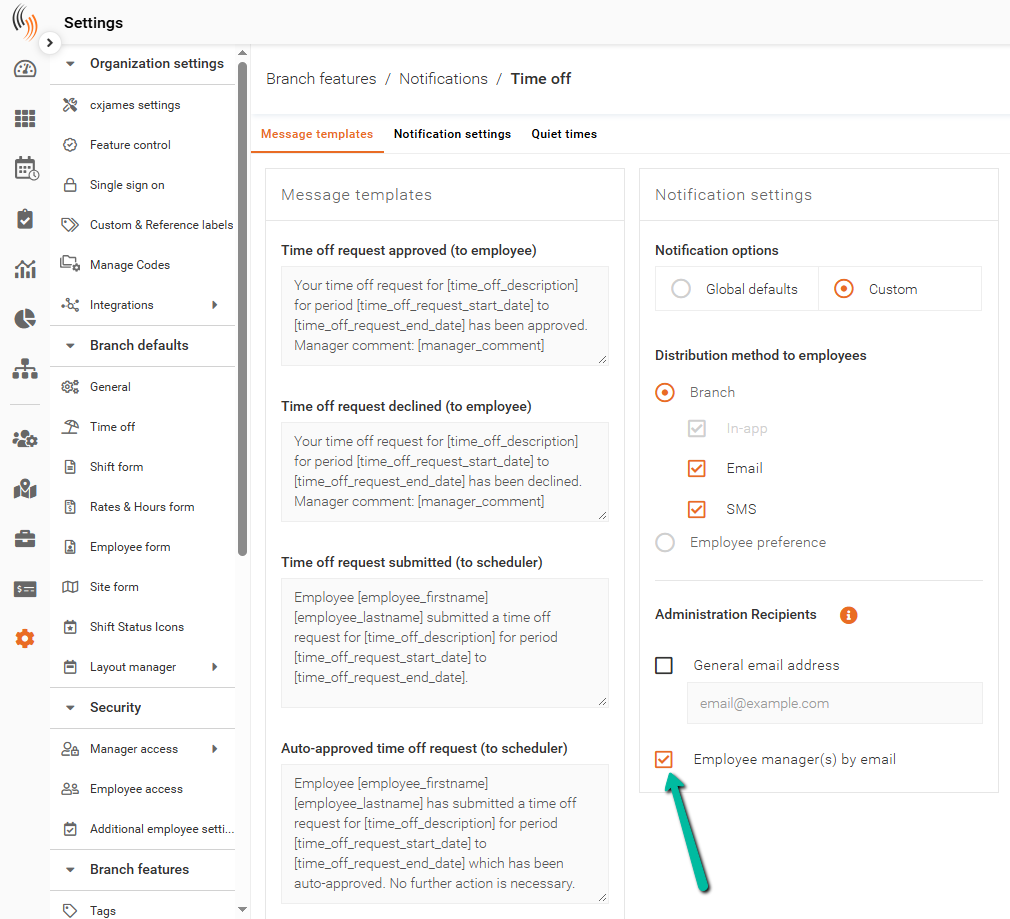
In Settings > Branch Features > Notifications > Time Off, select Custom under Notification Settings and enable Employee Manager(s) by Email under Administration Recipients.
Managers can also filter Time Off requests to focus on employees assigned to them, making it easier to review their team’s requests and plan coverage.
Shift Drop Notifications and Requests
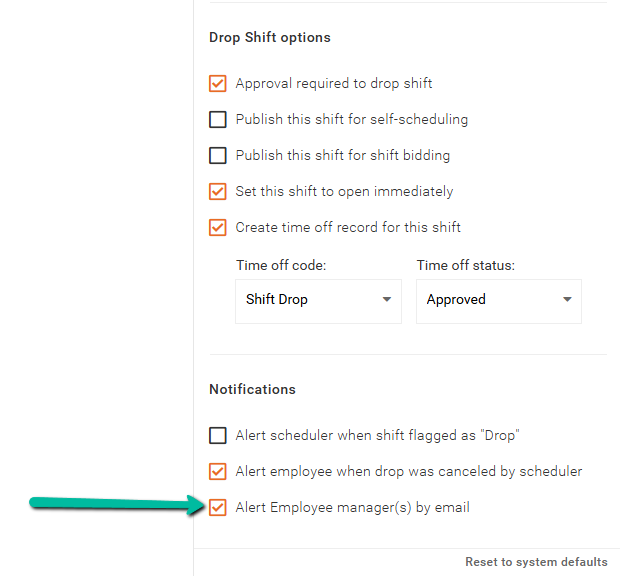
Go to Settings > Branch Features > Shift Options > Drop Shift and configure notifications to notify the employee’s assigned managers when a shift-drop request is submitted.
Shift Confirmation Notifications
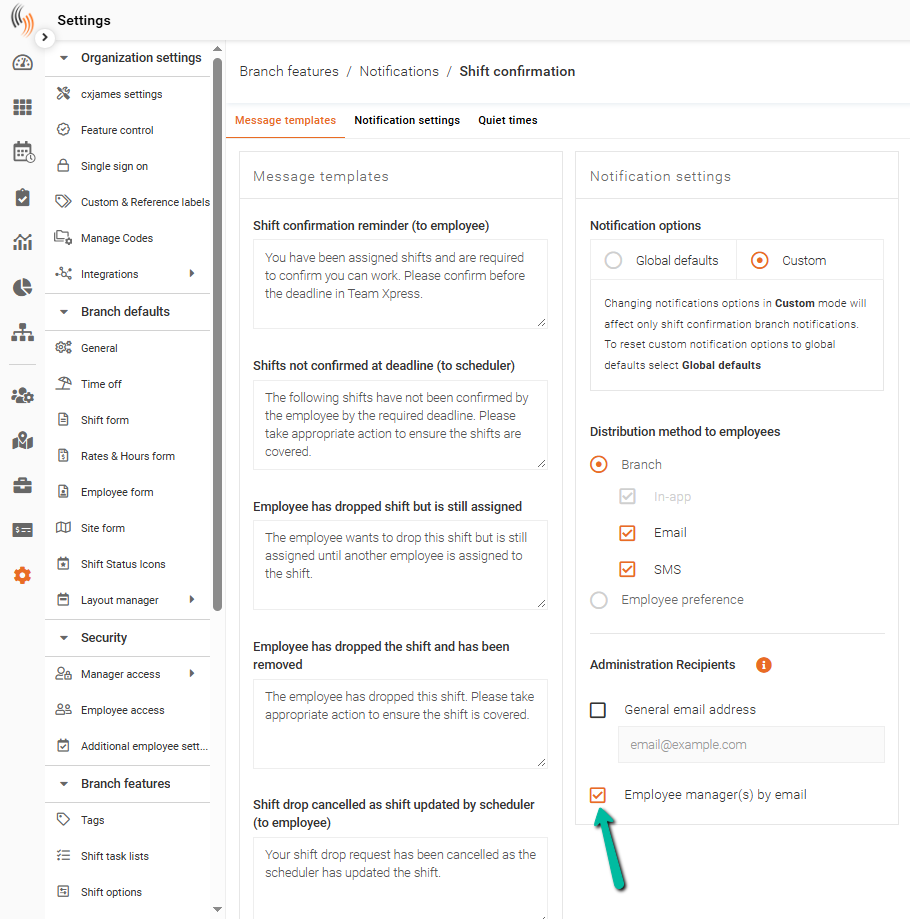
Go to Settings > Branch Features > Notifications > Shift Confirmation > Notification Settings and select Custom. Under Administration Settings, enable employee-manager routing to send supported shift confirmation notifications to the employee’s assigned managers, helping them follow up where needed.
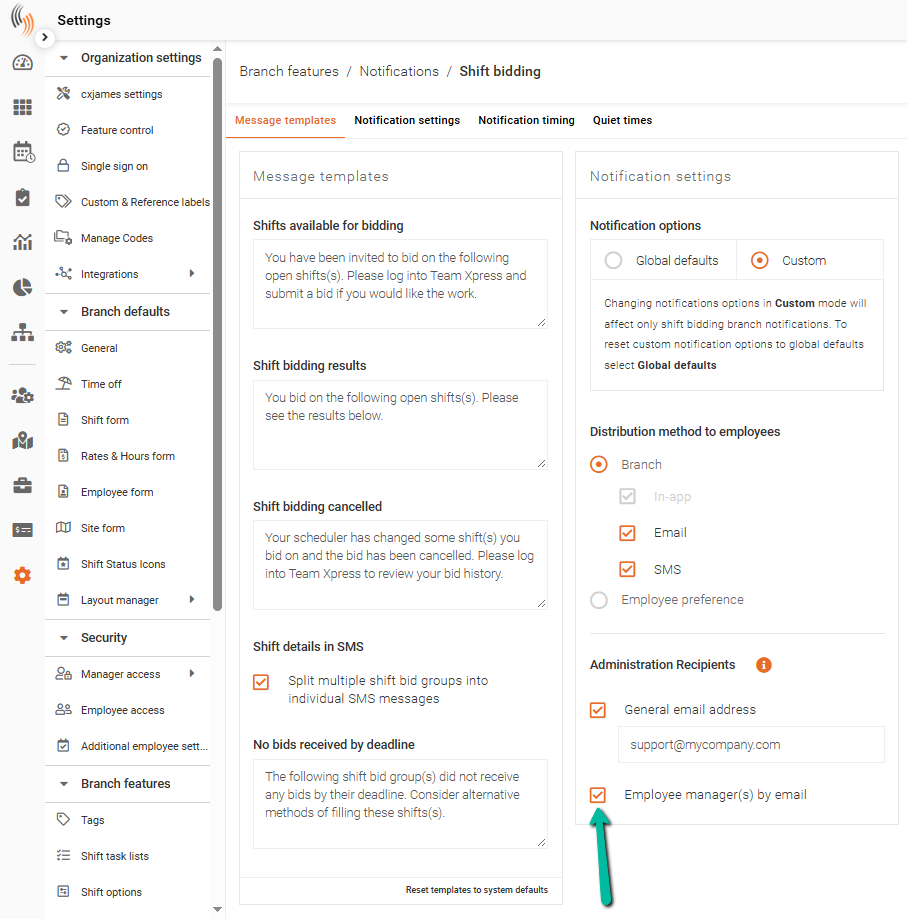
Shift Bidding Notifications
Go to Settings > Branch Features > Notifications > Shift Bidding > Notification Settings and select Custom. Under Administration Settings, enable employee-manager routing to include the employee’s assigned managers in supported bidding updates, keeping them informed about their team’s bidding activity.
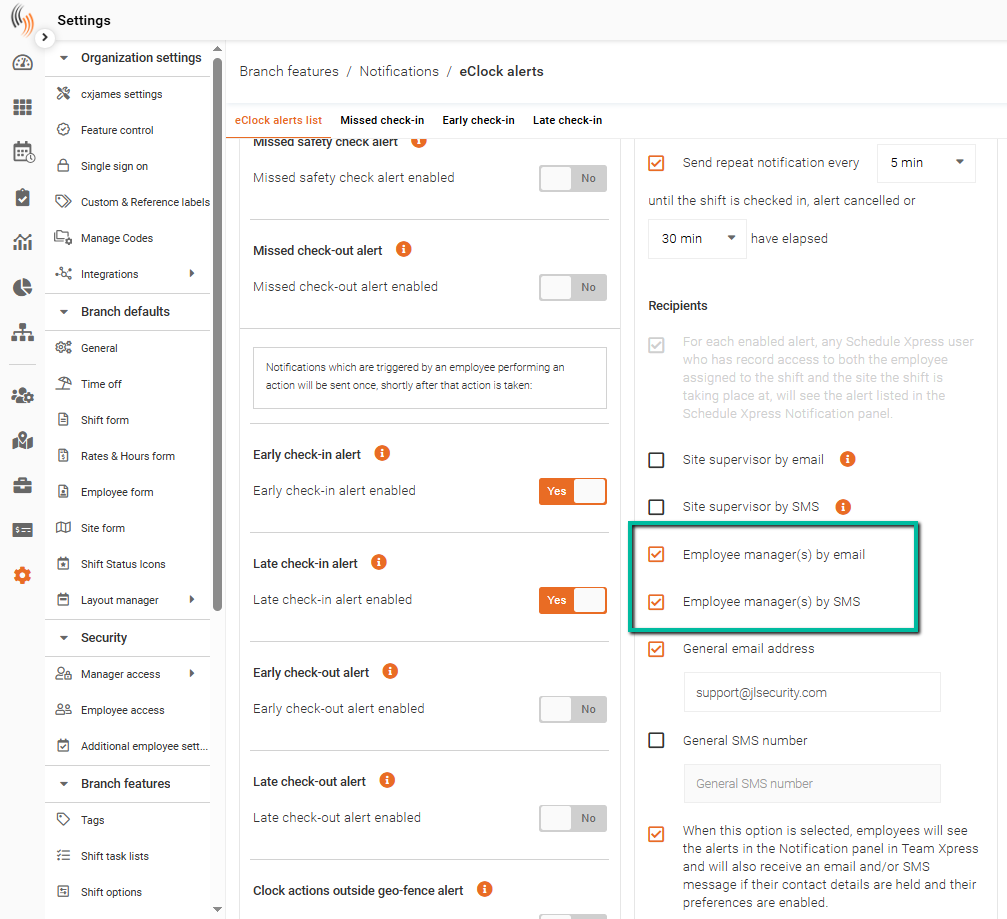
eClock Alerts Notifications
Go to Settings > Branch Features > Notifications > eClock Alerts > Notification Settings and select Custom. Under Administration Settings, enable employee-manager routing to send supported eClock alerts to the employee’s assigned managers so they can review and follow up.
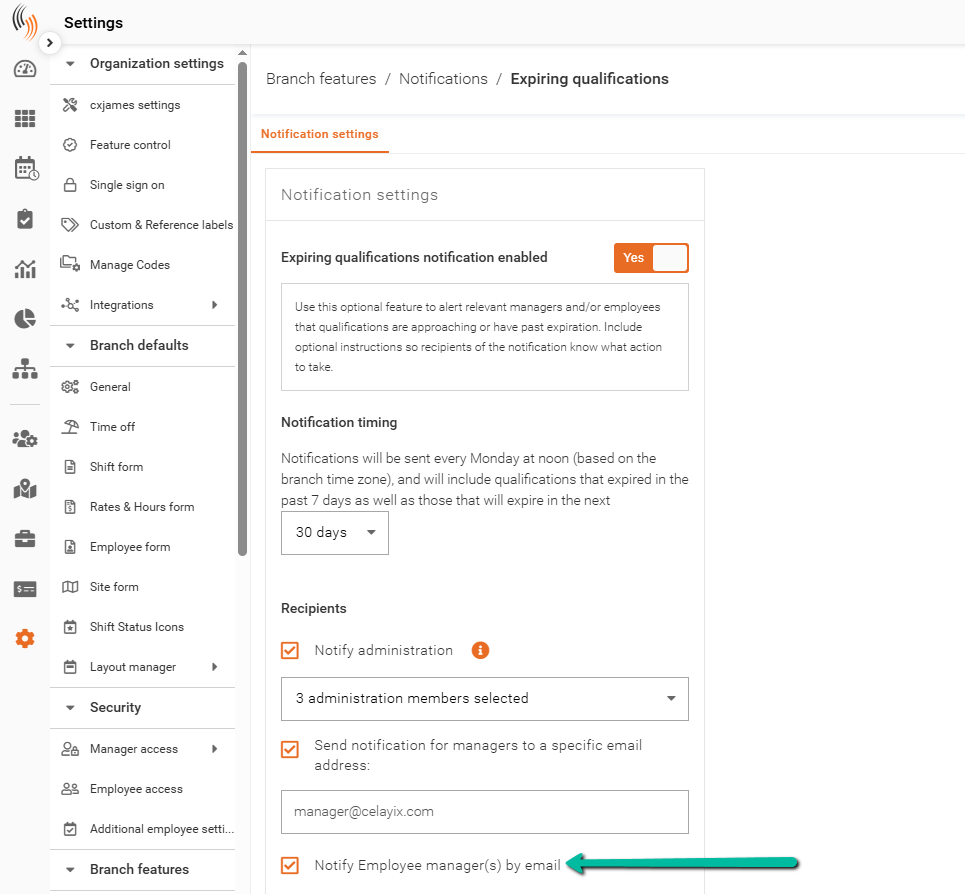
Expiring Qualifications Notifications
Go to Settings > Branch Features > Notifications > Expiring Qualifications > Notification Settings and select Custom. Under Administration Settings, enable employee-manager routing to notify assigned managers about employee qualifications approaching expiry, helping them coordinate renewals and maintain staffing readiness.
Break Reminders to Help Employees Take Breaks on Time
You can now use Mid-Shift Reminders to prompt employees to take their breaks before they risk missing required break timing. Administrators can configure in-app reminders for specific intervals after an employee’s recorded check-in time, helping employees stay aware of when they need to take a break.
Enable Mid-Shift Reminders
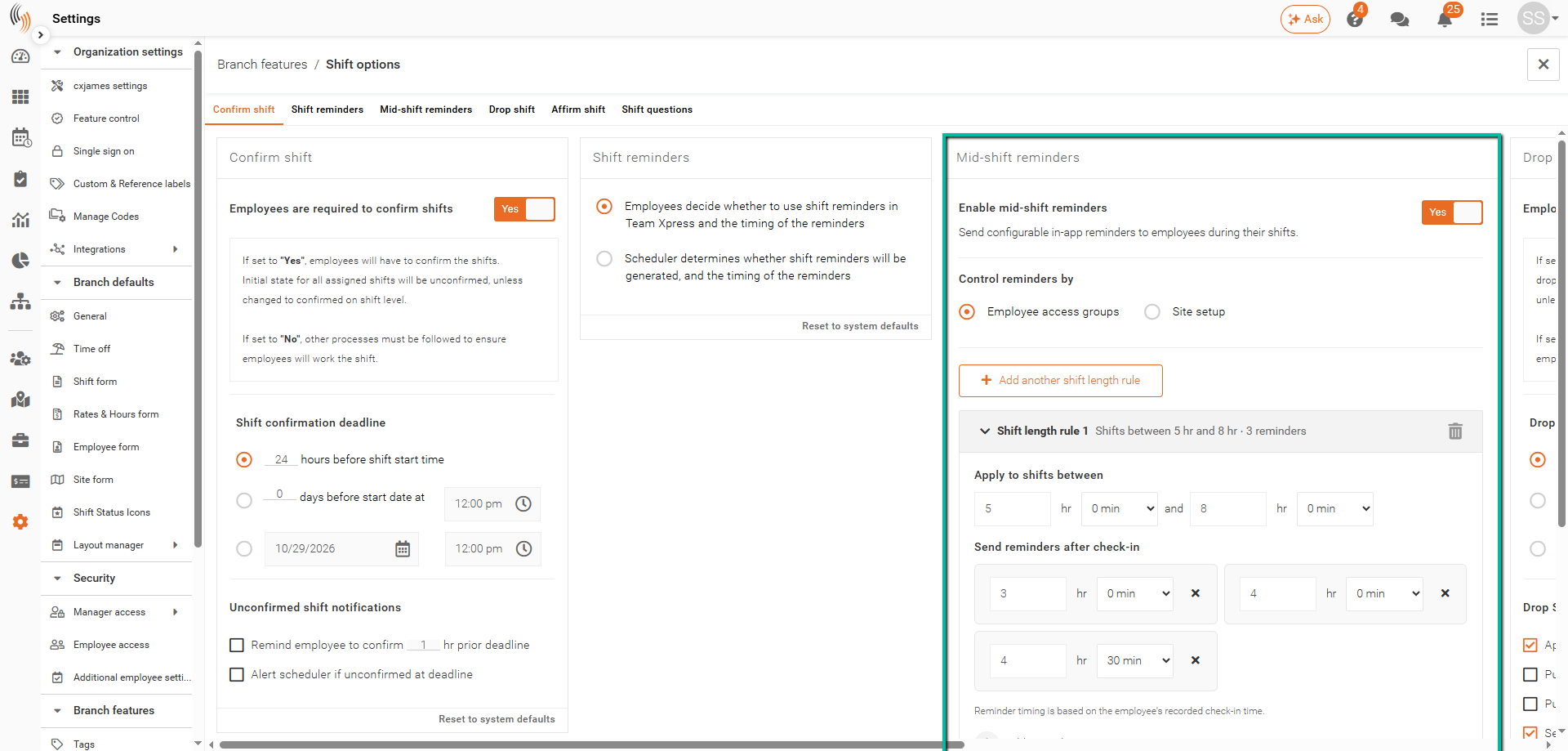
Go to Settings > Branch Features > Shift Options > Mid-Shift Reminders and set Enable Mid-Shift Reminders to Yes. Choose whether reminders are controlled by Employee Access Groups or Site Setup.
Configure Shift Length Rules and Reminder Times
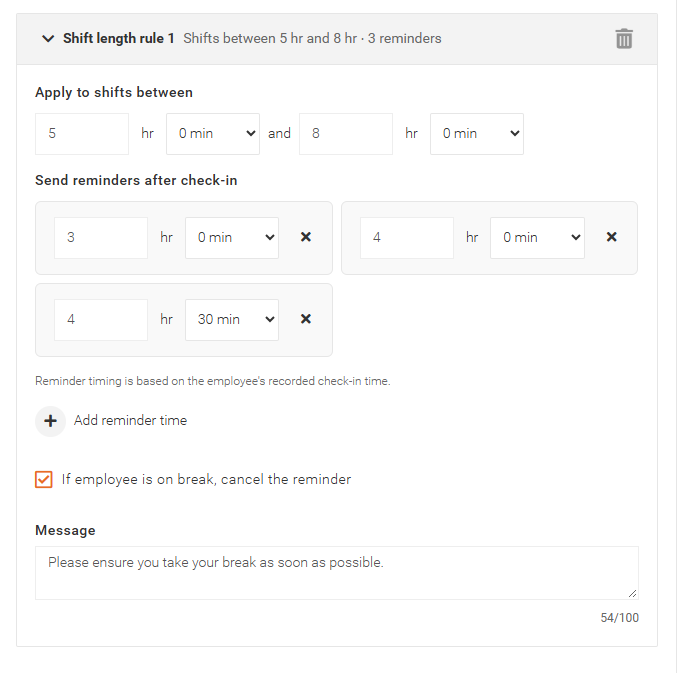
Add a Shift Length Rule and define the shift lengths it applies to. Under Send Reminders After Check-In, choose how long after check-in each reminder should be sent.
For example, for shifts between five and eight hours, you could send reminders after three hours, four hours, and four hours thirty minutes. Use Add Reminder Time to include additional reminders or Add Another Shift Length Rule to configure different shift lengths.
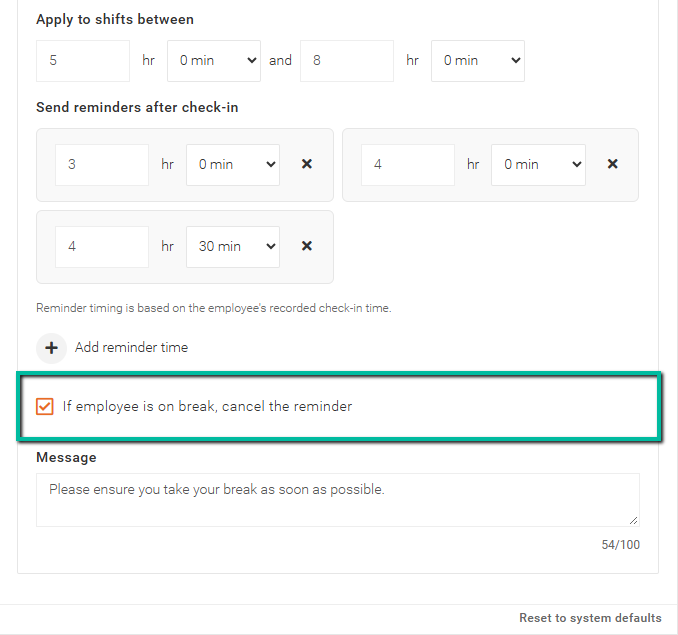
Cancel Reminders While Employees Are on Break
Select If Employee Is on Break, Cancel the Reminder to prevent a scheduled reminder from being sent while the employee is already on break.
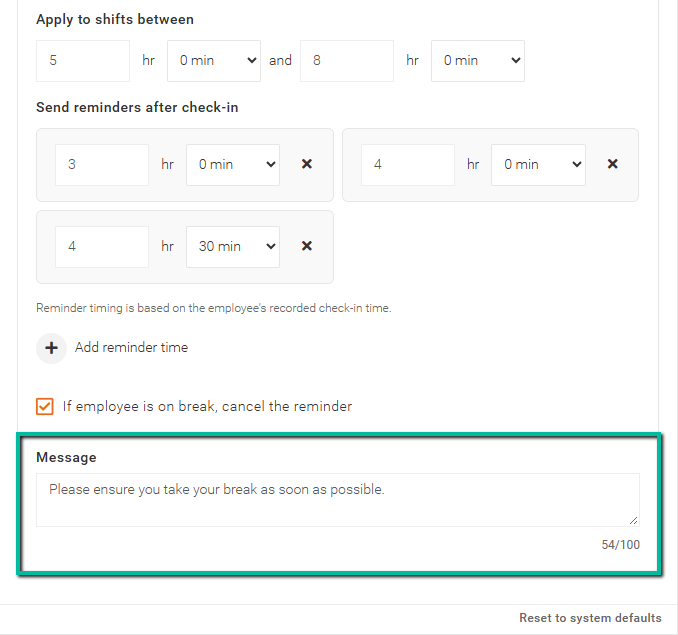
Customize the Reminder Message
Enter the message employees should receive, such as “Please ensure you take your break as soon as possible.”
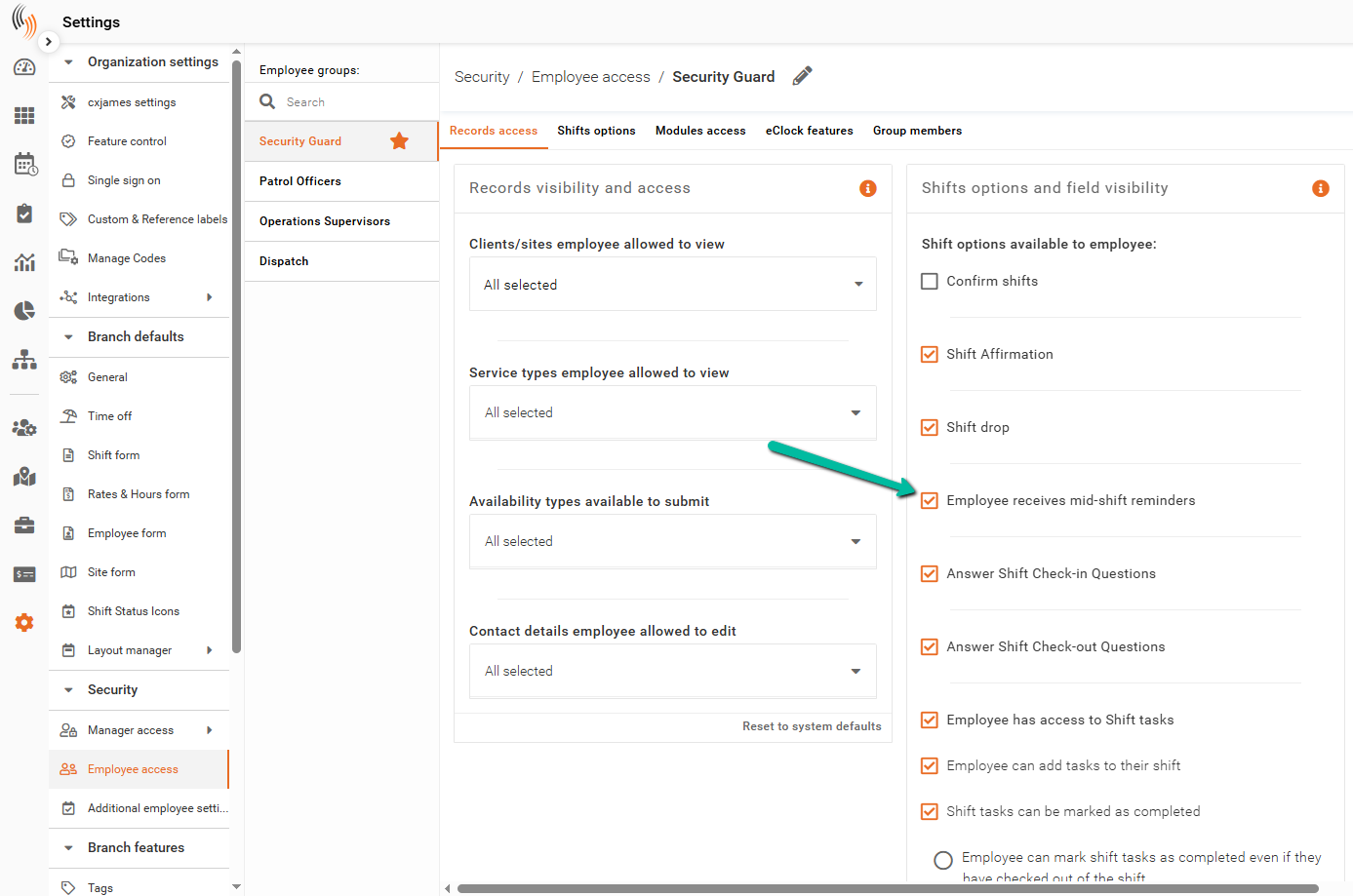
Enable Reminders for Employee Access Groups
If you selected Employee Access Groups, go to Settings > Security > Employee Access and select the relevant group. Under Shifts Options, enable Employee Receives Mid-Shift Reminders.
Enable Reminders for Sites
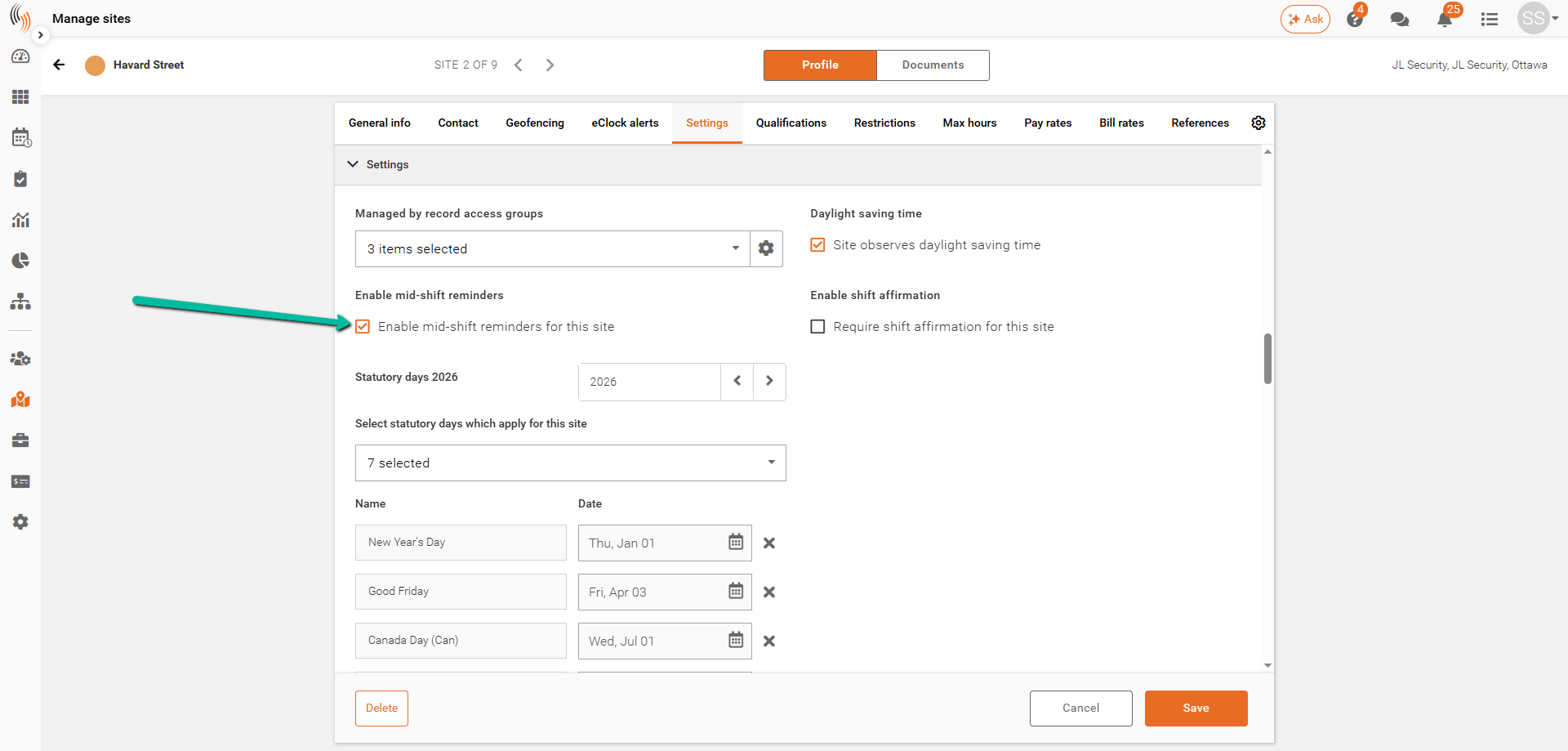
If you selected Site Setup, open the relevant site in Manage Sites and go to Settings. Select Enable Mid-Shift Reminders for This Site, then click Save.
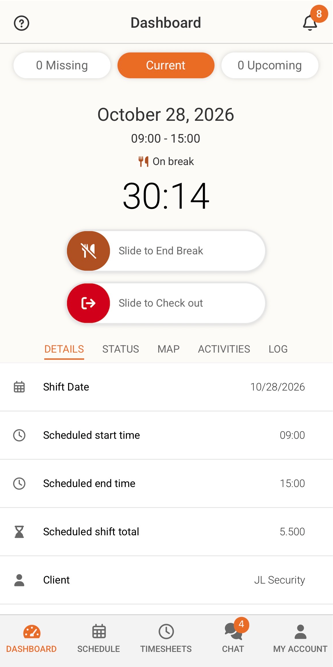
Break Timer: Help Employees Track Their Break Time
Employees can now keep track of their break time with the new Break Timer. When an employee slides to start a break, the timer begins, showing how long they have been on break.
This gives employees an easy way to monitor their break duration and know when it’s time to return to work. It’s especially helpful for employees who need to meet required break lengths, supporting compliance with company break policies and applicable break requirements.
Break Guardian to Notify About Non-Compliant Meal Breaks
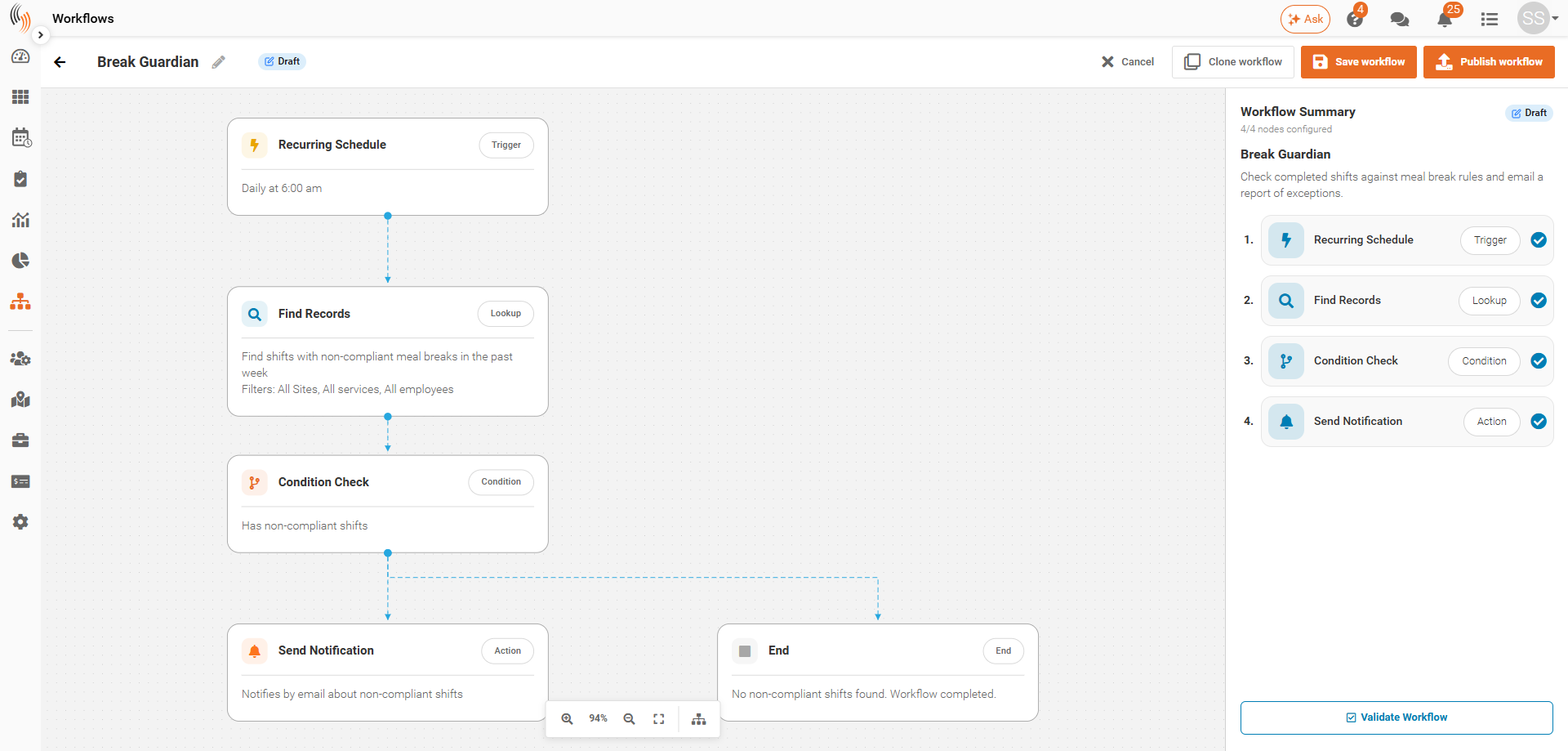
Break Guardian is a new template available within the Workflows feature. It helps managers monitor meal break compliance by automatically checking completed shifts against California meal break rules and emailing a report of exceptions.
Set up Break Guardian through four simple steps in the workflow:
- Recurring Schedule: Set how often and at what time you want to receive notifications about non-compliant meal breaks.
- Find Records: Choose the meal break rule to check against and the period to review, such as the past week. Use the site, service, and employee filters to define which shifts to include. The workflow identifies meal breaks that do not meet the selected rule, such as missing breaks, late starts, or insufficient break duration.
- Condition Check: Use the Has non-compliant shifts condition to check whether any shifts violate the break rule selected in the Find Records step. Set the Is true path to Send Notification so an email is sent when exceptions are found, and the Is false path to End so the workflow finishes without a notification when no exceptions are found.
- Send Notification: Select Email as the notification delivery method and enter the email addresses of those who should receive the report. You can add multiple recipients so the appropriate managers are notified when non-compliant meal breaks are found.
Once configured, validate and publish the workflow to begin running these checks automatically. This helps managers stay informed about meal break exceptions while reducing manual review.
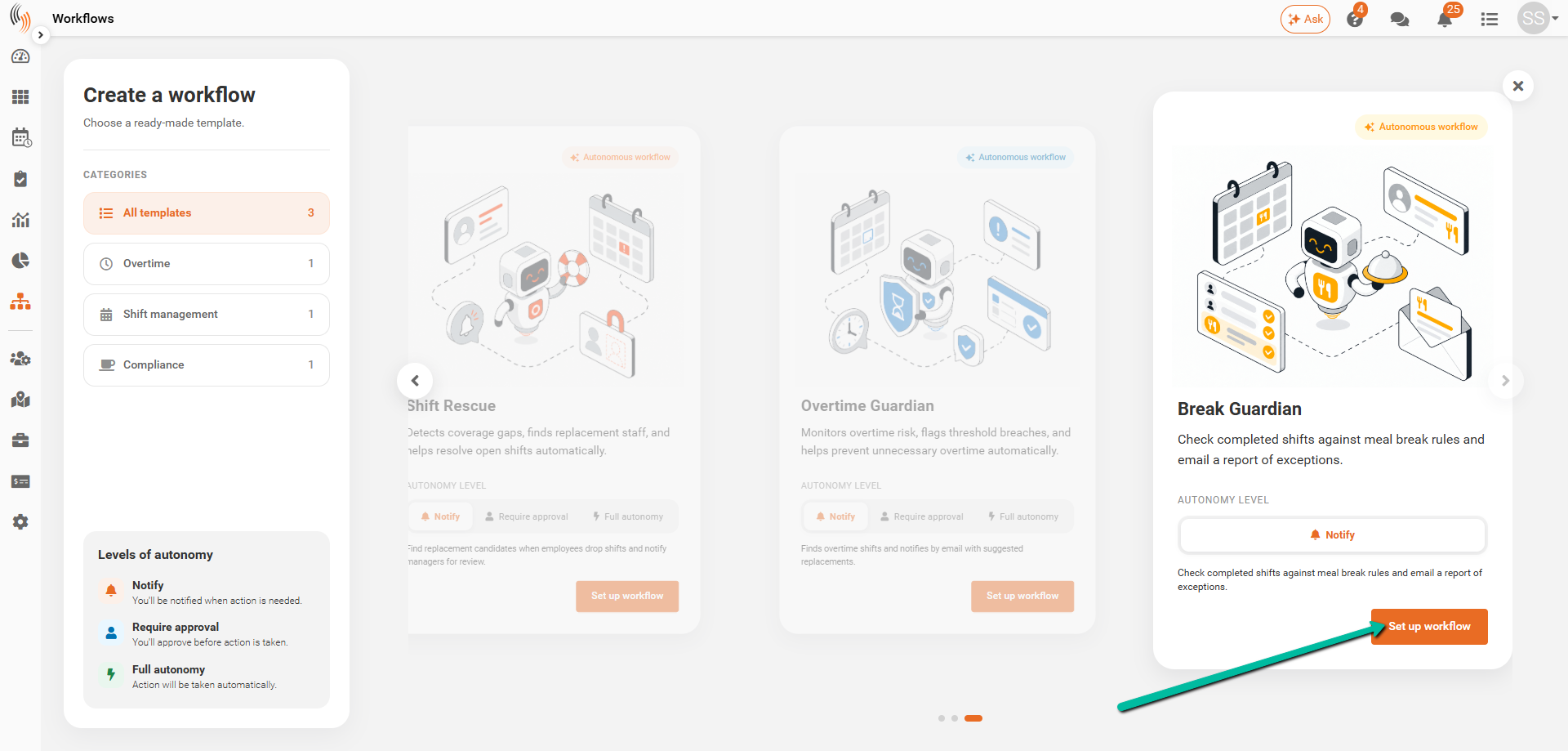
To get started, open Workflows, select the Break Guardian template, and click Set up workflow. Configure the schedule, review criteria, and notification settings, then publish the workflow to begin monitoring.
Example of a Break Guardian Email Notification
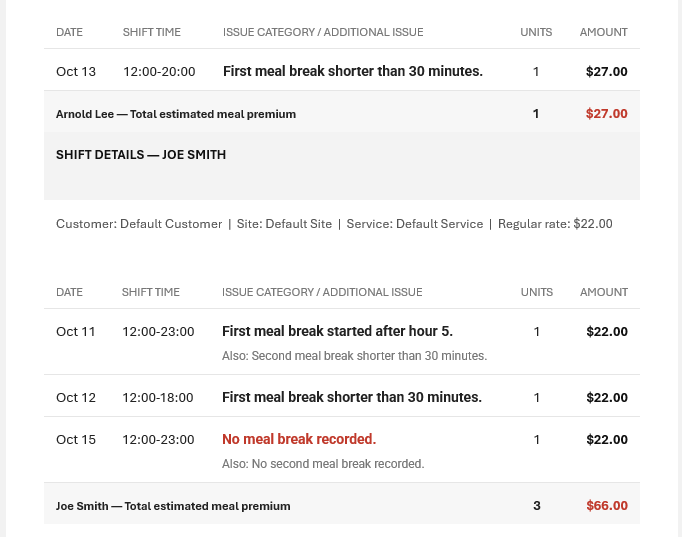
When Break Guardian identifies non-compliant meal breaks, recipients receive an email summarizing the review period, employees flagged, affected shifts, premium units, and estimated premium amounts.
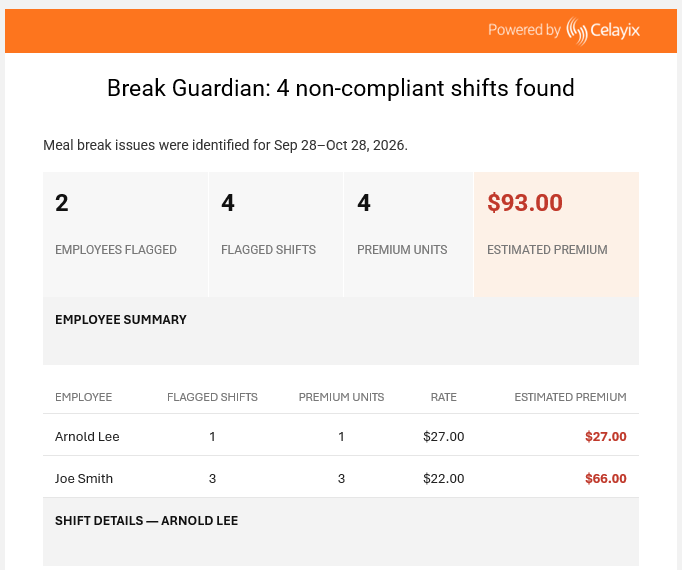
The email includes an Employee Summary and Shift Details, highlighting issues such as missing meal breaks, breaks started late, or breaks shorter than the required duration. This helps managers review each exception and understand the estimated meal premium associated with the flagged shifts.
Post Shifts for Self-Scheduling in Schedule Xpress Mobile
You can now publish open shifts for self-scheduling directly in Schedule Xpress Mobile, making it easier to offer shifts to employees while on the go.
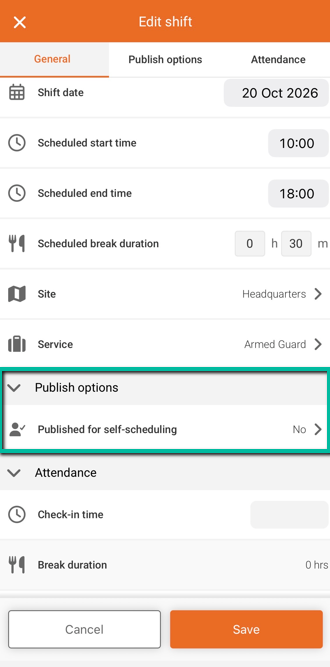
Open the Shift’s Publish Options
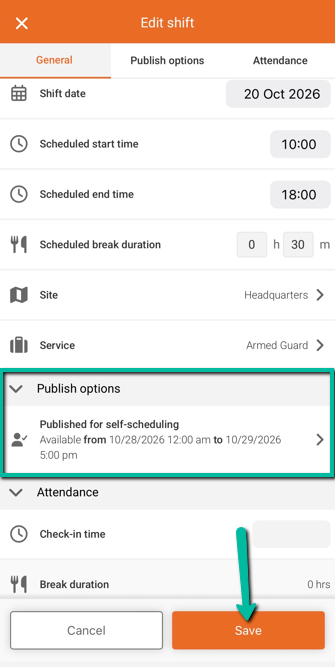
Edit an open shift and select Published for Self-Scheduling under Publish Options.
Set the Self-Scheduling Window
Turn on Publish for Self-Scheduling, then choose the start and end dates and times. This determines when employees can select the shift.
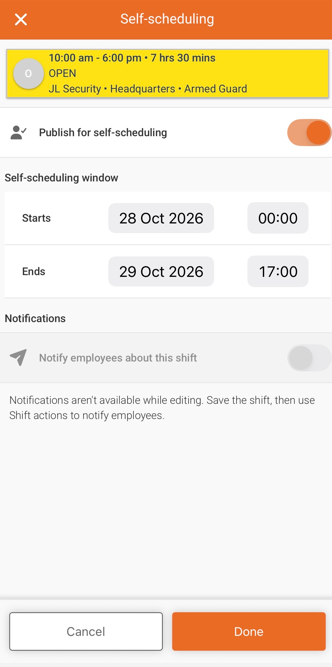
Save Your Changes
Tap Done, then Save to publish the shift with the selected self-scheduling window.
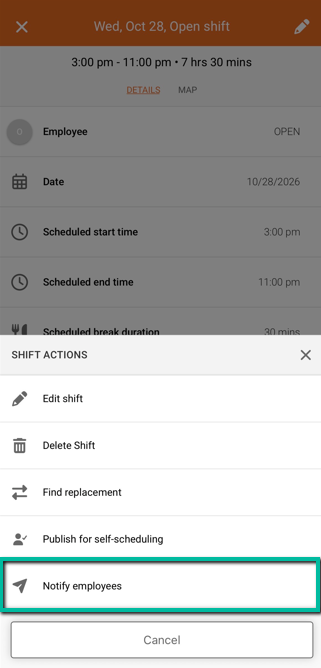
To notify employees, open Shift Actions after saving and select Notify Employees.
Unpublish When Needed
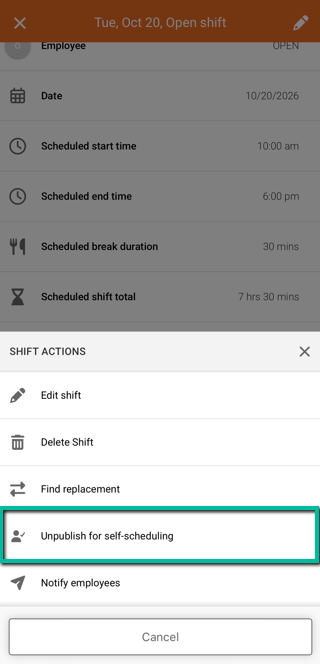
Open the shift, tap Shift Actions, and select Unpublish for Self-Scheduling to remove it from self-scheduling.
Notify Employees of Open Shifts in Schedule Xpress Mobile App
You can now notify employees about open shifts directly in Schedule Xpress Mobile. Use this option to let employees know when a shift is available for Self-Scheduling, or ask interested employees to call a supervisor so the shift can be assigned manually.
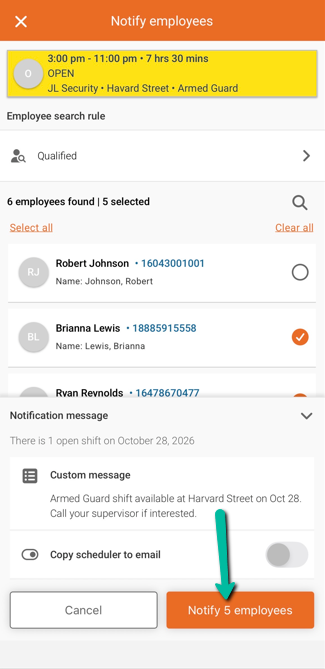
Open Notify Employees
Open an open shift, tap Shift Actions, and select Notify Employees.
Choose Your Search Criteria
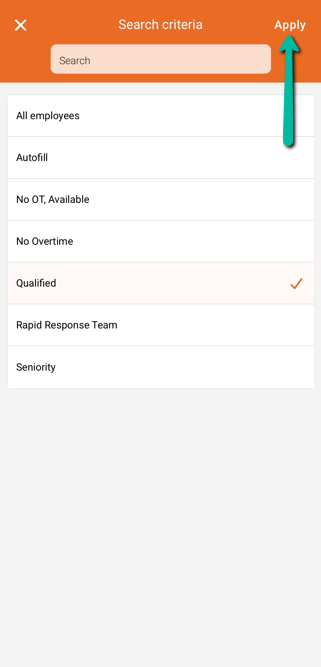
Tap Select Search Criteria.
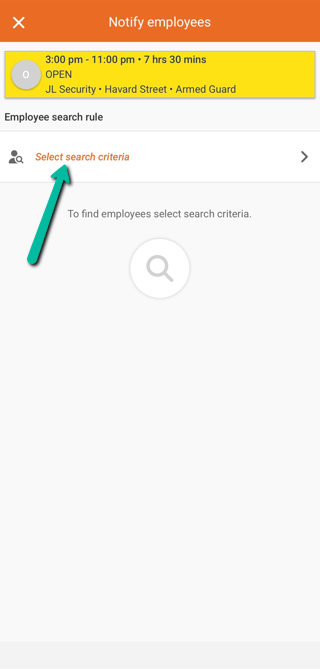
Next, choose the employee search rule you want to use, such as Qualified, No Overtime, or All Employees. Tap Apply to find matching employees.
Select Employees to Notify
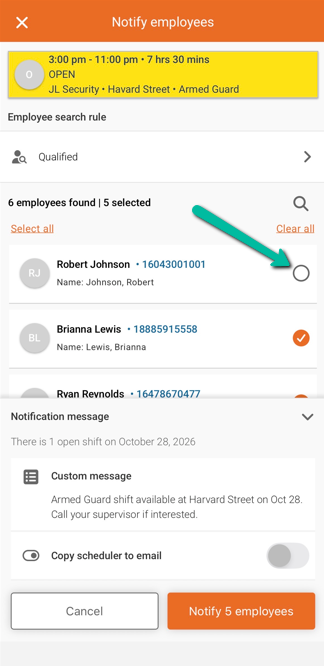
Review the results and select the employees you want to notify. Use Select All or Clear All to update the selection, or tap the selection circle beside an employee to include or exclude them.
Add a Custom Message
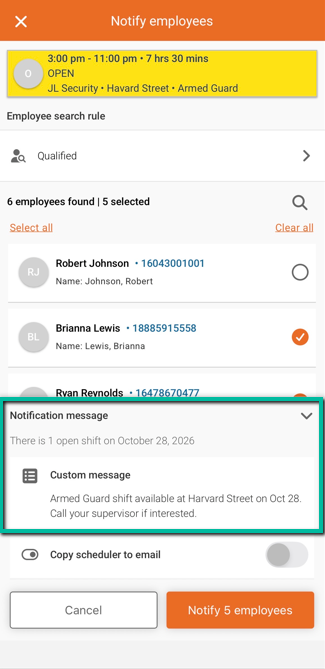
Under Notification Message, use Custom Message to provide instructions. For example, let employees know the shift is available for Self-Scheduling, or ask them to call their supervisor if interested.
Copy the Scheduler
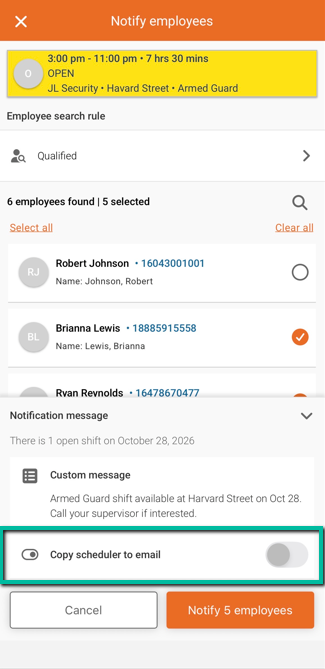
Turn on Copy Scheduler to Email if you want the scheduler to receive an email copy of the notification.
The Scheduler Email is located in Global Defaults.
Send the Notification
Tap Notify Employees. The button shows how many employees will be notified.
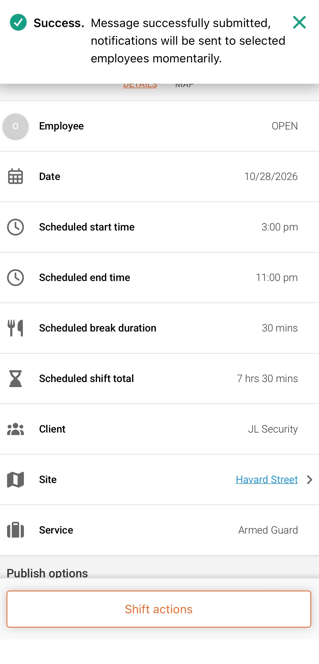
A success message confirms that your message has been submitted and notifications will be sent to the selected employees momentarily.
Bug Fixes and Improvements
We’ve made updates to improve the user experience. Below are the notable bug fixes and improvements applied in October 2026.
Apply the 7 Consecutive Day Overtime Rule Only to California Employees
We’ve added the option to apply the 7 Consecutive Day Overtime Rule only to California-based employees. Previously, this rule applied across the entire branch, which could affect employees in other states when a branch operated across multiple states.
Please contact Celayix Support if you require this setup.