
Slide to Start Break
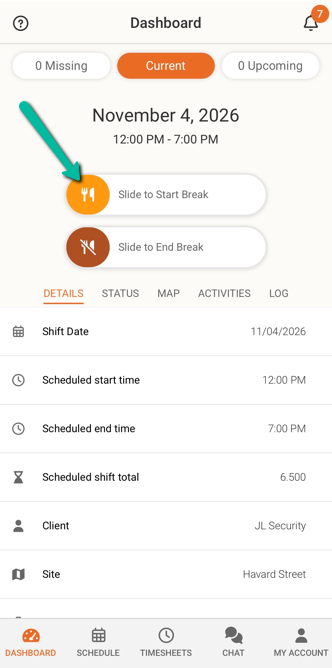
Record your breaks in Team Xpress using the break slider. This lets you record when your break starts and ends and see how long you’ve been on break.
Slide to Start Break
Once you check in, the break slider is available throughout your shift until you check out.
- Open Team Xpress and select your current shift.
- Locate the break slider.
- Slide to start your break.
Start your break in the app when you actually stop working.
Note: If your location has a geofence, you must be within it to use Slide to Start Break.
Track Your Break with the Break Timer
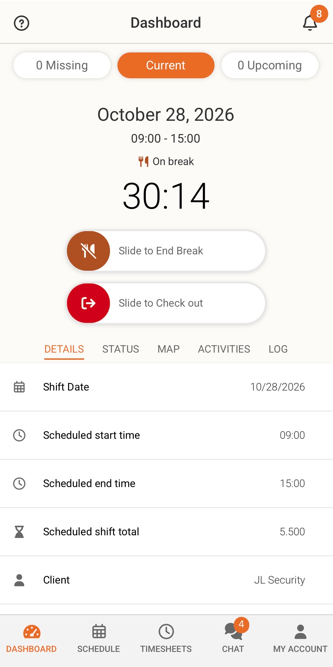
Once you use Slide to Start Break, the Break Timer shows how long you’ve been on break.
Check the timer to help you follow your company’s break policy and return to work on time. When your break is over, use Slide to End Break.
Important: The timer tracks your break duration. It does not automatically end your break—you must use the slider when you return to work.
Slide to End Break
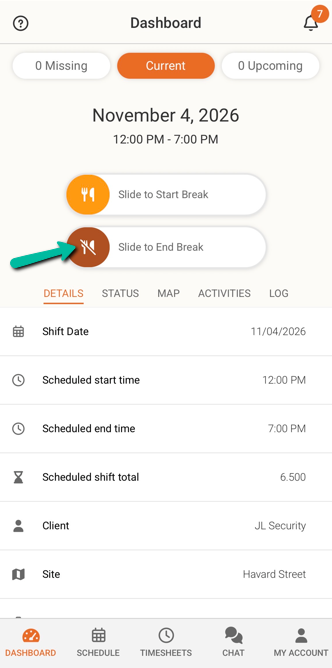
- Open your current shift in Team Xpress.
- Use the break slider to end your break when you return to work.
- Check that your break has ended before continuing your shift.
Repeat these steps for any additional breaks during your shift.
Note: If your location has a geofence, you must be within it to use Slide to End Break.
Important: Use the Break Timer to track your break and end it at the correct time. If you return to work without ending your break in the app, that time may remain recorded as break time, potentially reducing your paid working time.
Follow Your Company’s Break Policy
Your employer determines when you should take breaks and how long they should last. Follow your company’s policy and contact your manager if you are unsure.
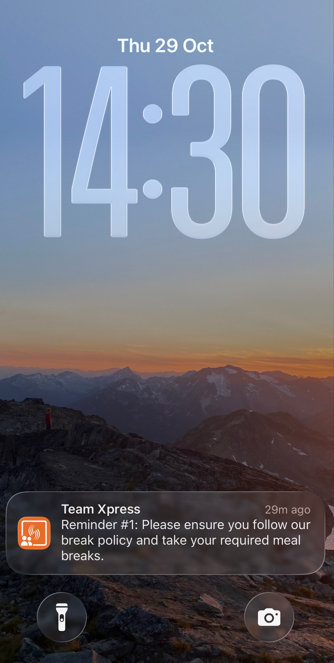
If you receive a break reminder, use the slider when you start your break. Receiving a reminder does not automatically start your break.
Need Help?
If the break slider is unavailable or you forget to record a break, contact your manager for assistance.