
About Workflows
Workflows allow you to automate common scheduling processes in Celayix. They can identify specific scheduling situations, check defined conditions, and automatically perform actions or notify the appropriate people.
Workflows help reduce manual schedule monitoring and allow Celayix to respond automatically when certain conditions are met.
Access Workflows
To access Workflows:
- Log in to Schedule Xpress.
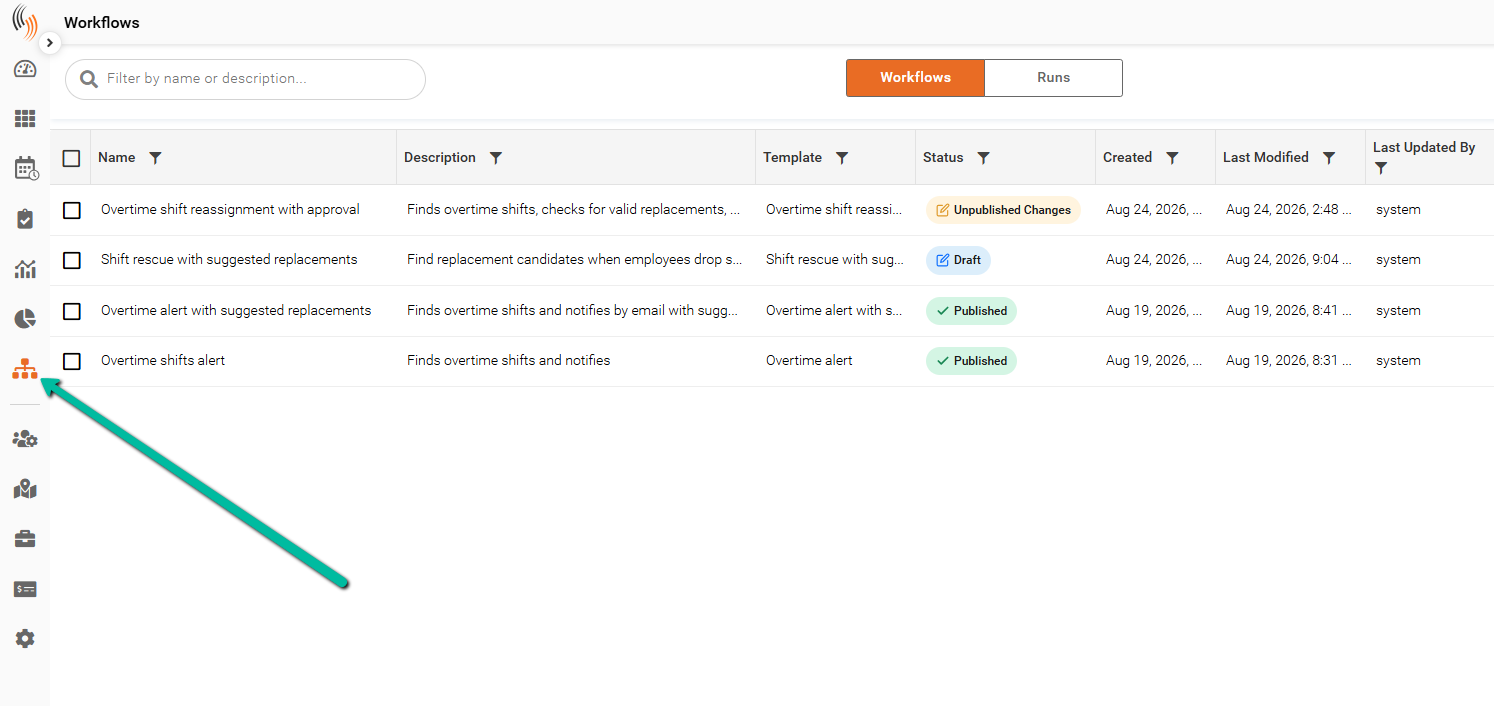
- Select the orange connected-nodes icon from the navigation menu to open Workflows.
The Workflows tab displays your existing Workflows, including their name, template, status, creation date, and last modified details.
From here, you can create new Workflows or select an existing Workflow to view and manage it.
How Workflows Work
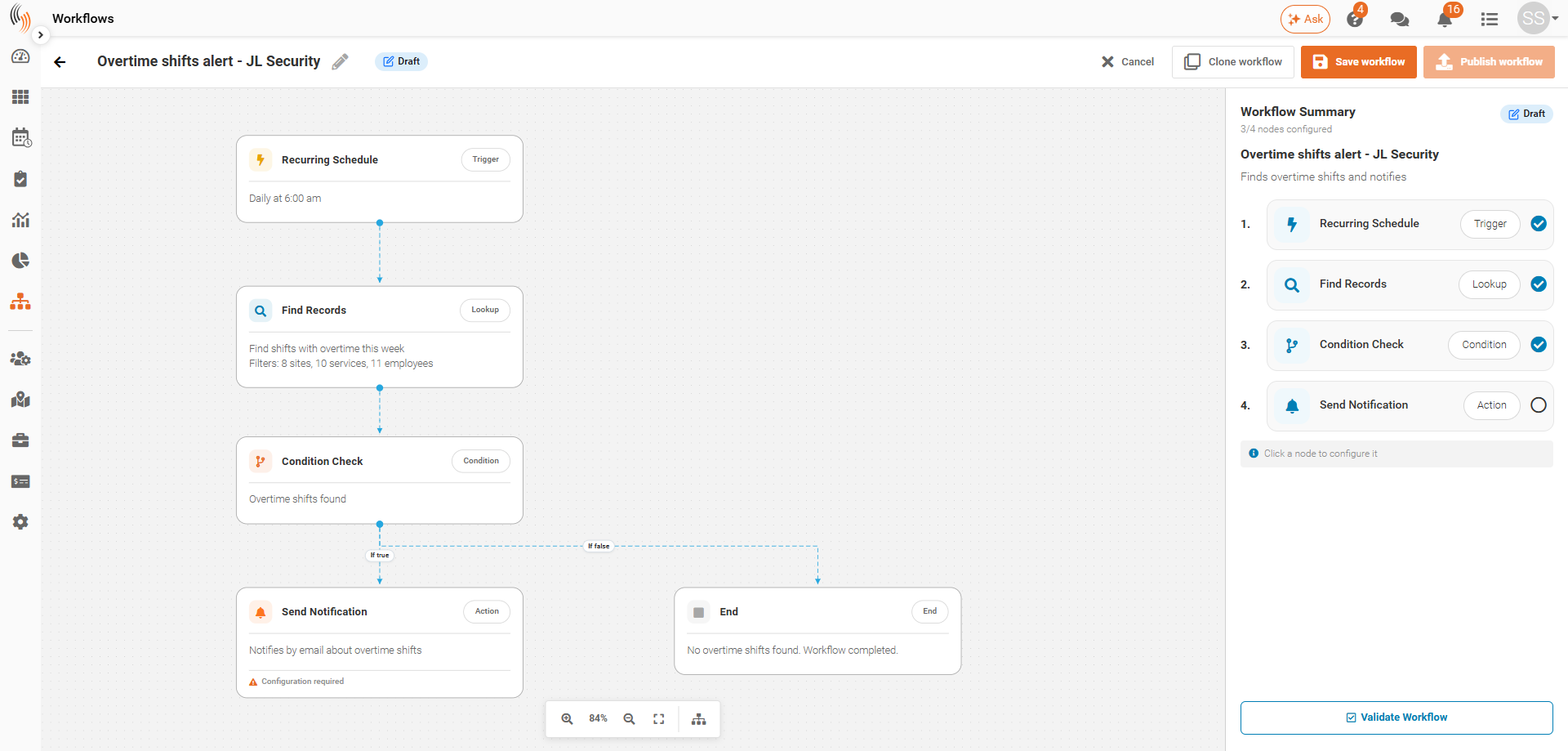
Workflows use a series of connected steps, or nodes, to determine what should happen and when.
Depending on the workflow, these can include:
- Trigger – Determines when the workflow starts, such as a recurring schedule.
- Lookup – Finds shifts or other records that meet the workflow criteria.
- Condition – Checks whether specified conditions have been met and determines what happens next.
- Action – Performs an action, such as sending a notification or reassigning a shift.
- End – Completes the workflow when no further action is required.
Each workflow follows these steps in sequence to automate the required process.
Workflow Templates
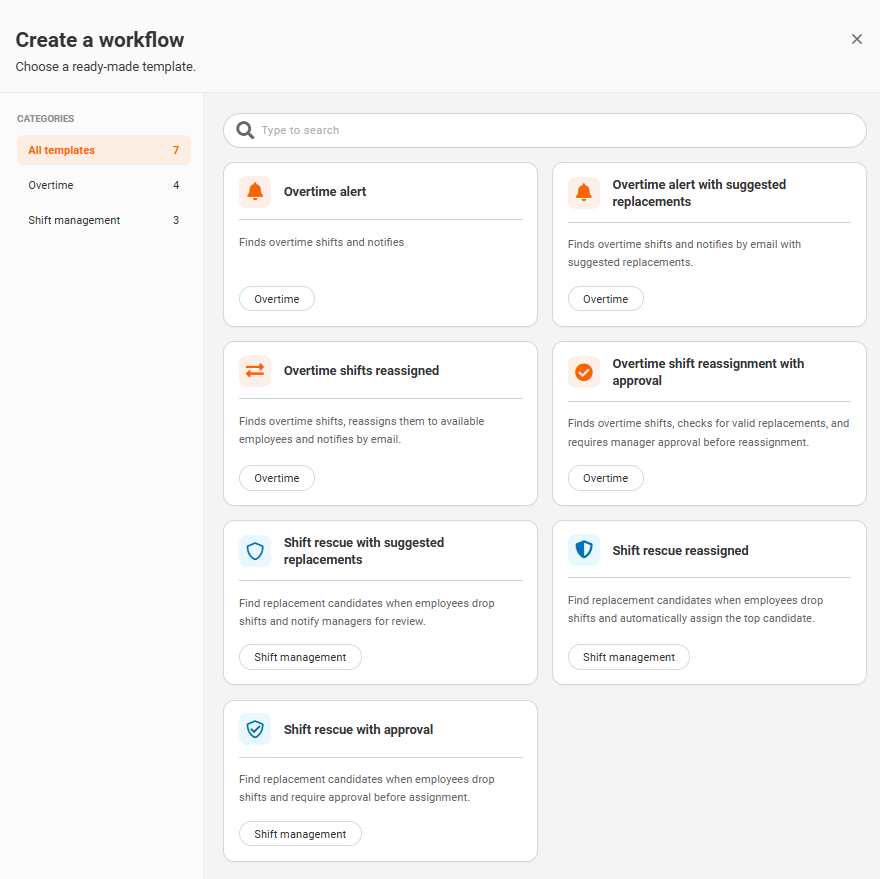
Celayix provides ready-made workflow templates for common scheduling scenarios. Templates contain the structure required for the workflow, which can then be configured for your organization's requirements.
Templates are grouped into categories based on their purpose. The categories are Overtime and Shift Management under which the following workflows reside.
Overtime Guardian
Overtime workflows can identify shifts containing overtime and take different actions depending on the selected template.
Available options include:
- Overtime alert – Finds overtime shifts and sends a notification.
- Overtime alert with suggested replacements – Finds overtime shifts and sends an email with suggested replacements.
- Overtime shifts reassigned – Finds overtime shifts, reassigns them to available employees, and sends an email notification.
- Overtime shift reassignment with approval – Finds overtime shifts and valid replacements but requires manager approval before reassignment.
Shift Rescue
Shift Management workflows help respond when an employee drops a shift.
Available options include:
- Shift rescue with suggested replacements – Finds replacement candidates and notifies managers for review.
- Shift rescue reassigned – Finds replacement candidates and automatically assigns the top candidate.
- Shift rescue with approval – Finds replacement candidates and requires approval before assignment.
Workflow Status
Workflows can be saved as a Draft while they are being configured. Before a workflow can be published, all required nodes must be configured and the workflow must be successfully validated.
Once published, the workflow can run according to its configured trigger and settings.
Next Steps
See Create Workflows to learn how to select a template, configure each node, validate, and publish a workflow.