Post Shifts for Self-Scheduling in Schedule Xpress Mobile
Post shifts for self-scheduling on the go with Schedule Xpress Mobile.
Admins can publish open shifts for self-scheduling directly from Schedule Xpress Mobile (SXM). This allows you to make shifts available for employees to pick up while on the go.
Publish an Open Shift for Self-Scheduling
To publish an open shift for self-scheduling, follow the steps below:
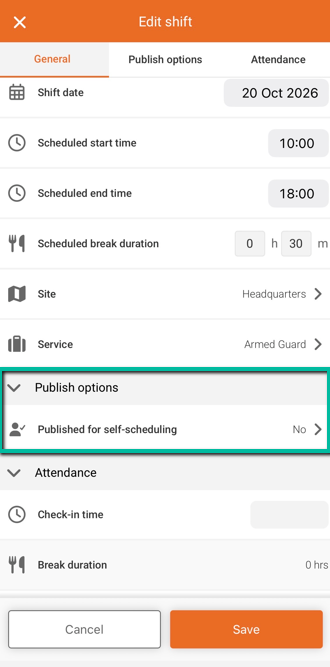
- Open Schedule Xpress Mobile and select the open shift you want to publish.
- Tap Edit and navigate to Publish Options.
- Select Published for Self-Scheduling.
Set the Self-Scheduling Window
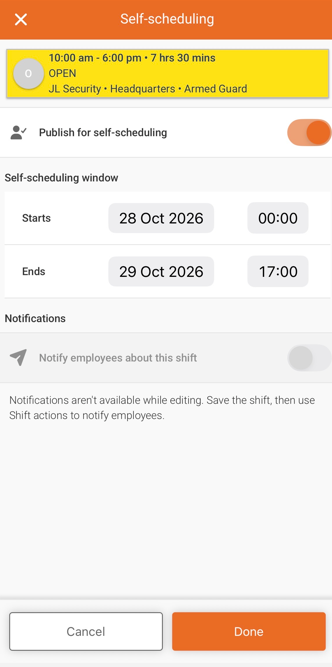
- Turn on Publish for Self-Scheduling.
- Select the start date and time and end date and time to define when employees can pick up the shift.
- Tap Done to confirm your selections.
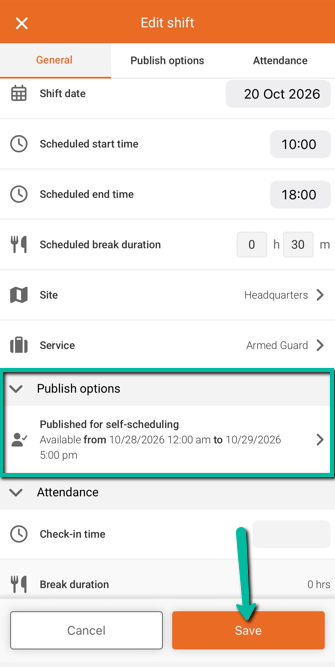
- Tap Save to publish the shift for self-scheduling.
The shift will be available for employees to pick up during the selected self-scheduling window.
Notify Employees
Once the shift has been saved, you can notify employees that it is available.
- Open Shift Actions for the shift.
- Select Notify Employees to send a notification.
Unpublish a Shift from Self-Scheduling
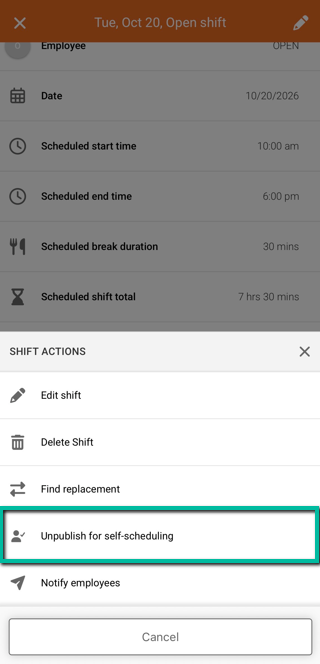
If you no longer want an open shift to be available for self-scheduling, you can unpublish it.
- Open the shift in Schedule Xpress Mobile.
- Tap Shift Actions.
- Select Unpublish for Self-Scheduling.
The shift will no longer be available for employees to pick up through self-scheduling.