
Align Stat Hours
This tool is primarily used by organizations that distribute hours using Shift Start Date rather than Calendar Date (Midnight Cutoff). When a shift crosses midnight into a statutory holiday, Align Stat Hours can redistribute regular and statutory hours so that only the portion of the shift worked on the statutory holiday receives the statutory pay rate.
Using Align Stat Hours helps maintain accurate payroll calculations for overnight shifts while ensuring statutory holiday hours are allocated correctly.
Why Use Align Stat Hours?
When a branch uses Shift Start Date hour distribution, all hours for a shift are assigned to the day the shift begins.
For example, if an employee works from 11:00 PM to 7:00 AM, all eight hours are assigned to the shift start date, even though part of the shift occurred on the following day.
If that shift overlaps a statutory holiday, the statutory hours may not be calculated correctly without adjustment.
Align Stat Hours redistributes the hours so that:
- Regular hours remain on the non-statutory day.
- Statutory hours are applied only to the portion of the shift worked on the statutory holiday.
- Payroll and billing calculations accurately reflect the hours worked on each day.
This is especially important for overnight shifts that span midnight into or out of a statutory holiday.
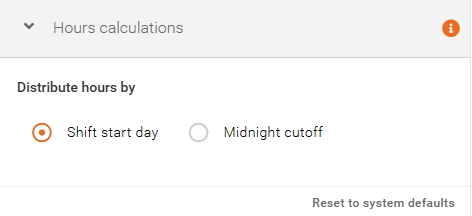
Understand Shift Start Date vs. Calendar Date
Align Stat Hours is only required for branches using Shift Start Date hour distribution.
Note: The hour distribution method can be adjusted in General Settings > Hours Calculations.
Shift Start Date
All hours worked are assigned to the date on which the shift begins.
For example, if an employee works from 11:00 PM on September 1 until 7:00 AM on September 2, all eight hours are assigned to September 1.
Calendar Date (Midnight Cutoff)
Hours are assigned to the calendar day on which they occur.
Using the same example:
- 1 hour is assigned to September 1
- 7 hours are assigned to September 2
Because hours are already split at midnight, Align Stat Hours is generally not required when using Calendar Date (Midnight Cutoff).
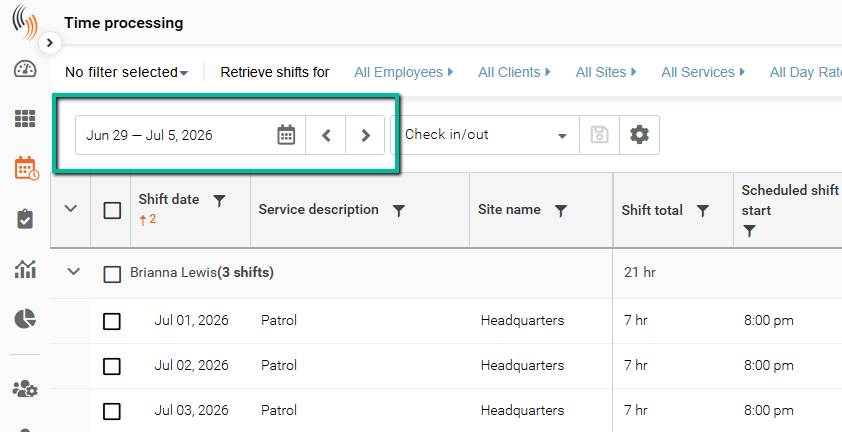
Step 1: Open Time Processing and Select a Date Range
- Go to Time Processing in Schedule Xpress.
- Select the appropriate date range that contains the stat holiday and any shifts that may span midnight.
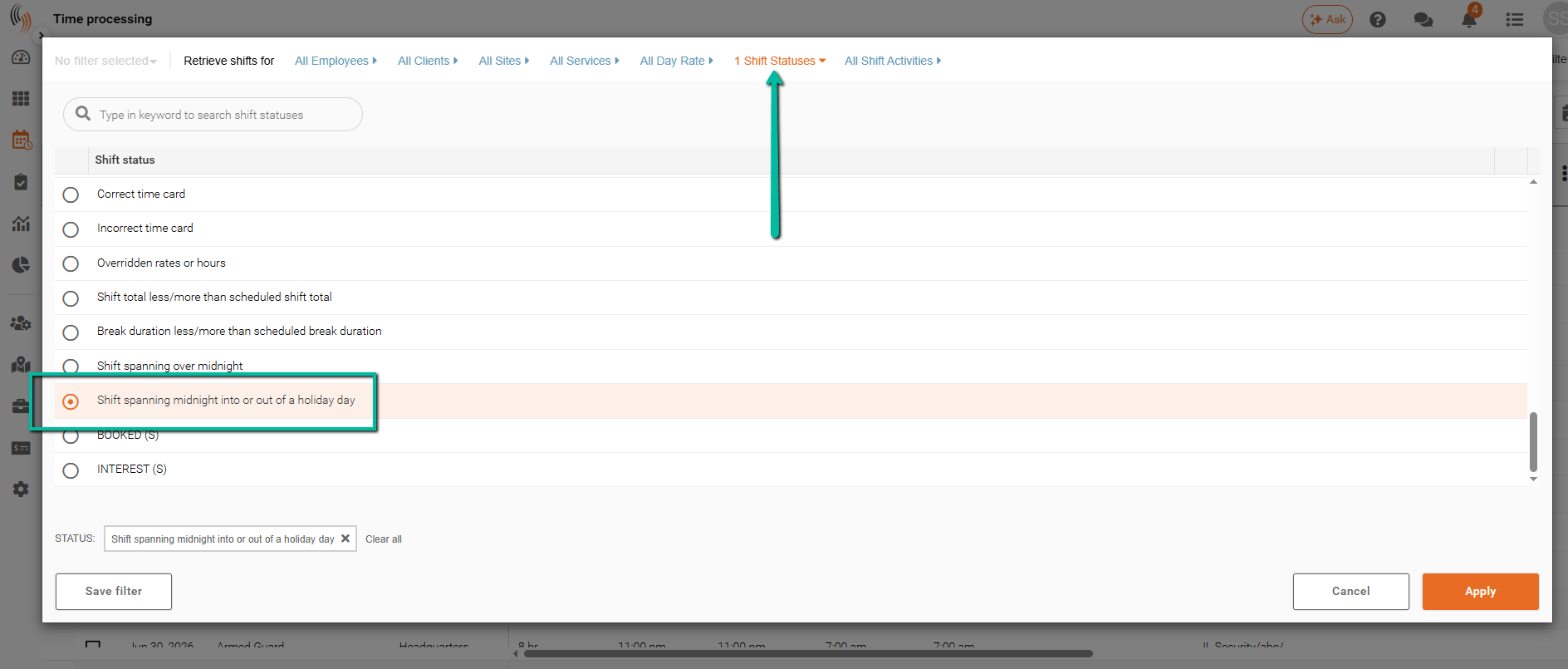
Step 2: Filter for Shifts That Span Midnight
Before aligning stat hours, filter for the shifts that require adjustment.
- Open Advanced Filters.
- Select All Shift Statuses.
- Choose Shifts spanning midnight into or out of a holiday day.
- Apply the filter.
Only shifts that span midnight into or out of a stat holiday will be displayed.
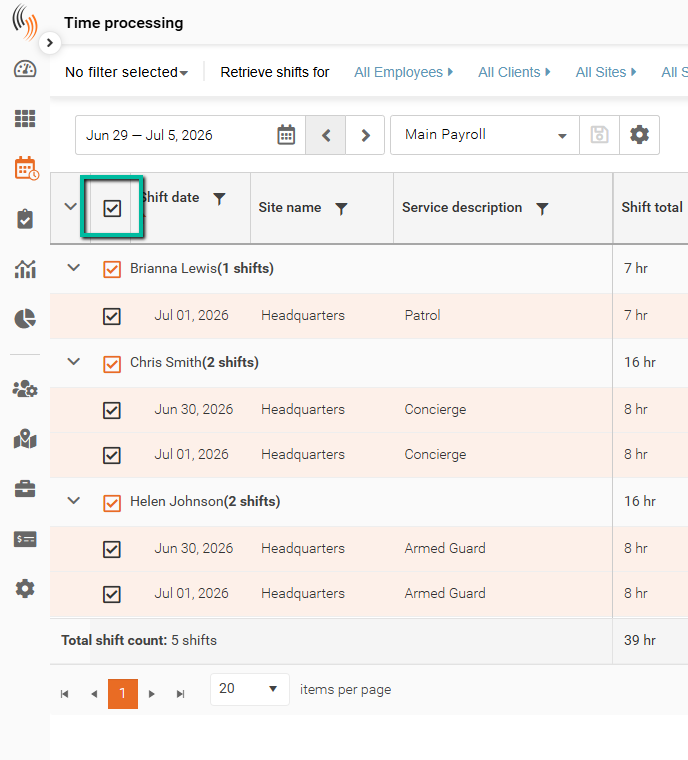
Step 3: Select the Shifts
Review the filtered results.
Highlight the shifts you want to align.
Note: At least one shift must be selected before the Align Stat Hours tool can be used.
Step 4: Open Align Stat Hours
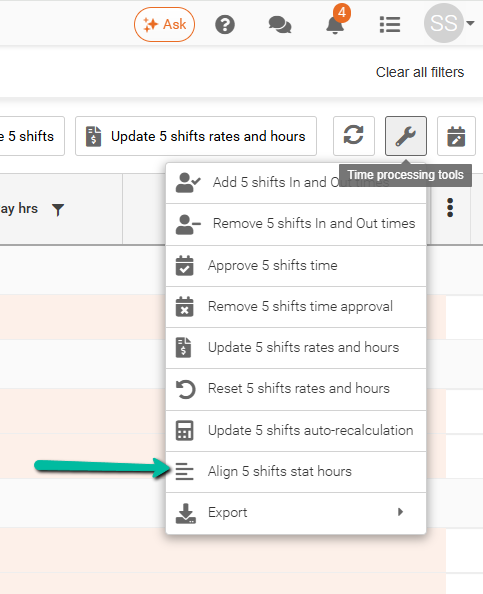
- Open Time Processing Tools.
- Select Align Stat Hours.
Step 5: Choose Payroll and/or Billing
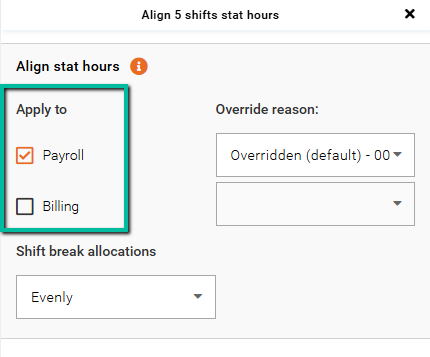
By default, Payroll and Billing are unchecked.
Select the option(s) you want to align:
- Payroll – Adjusts the employee's pay hours.
- Billing – Adjusts the client's billing hours.
When an option is selected, you will be prompted to enter an override reason. This reason is recorded as the approval reason for the adjustment.
Step 6: Choose a Shift Break Allocation Method
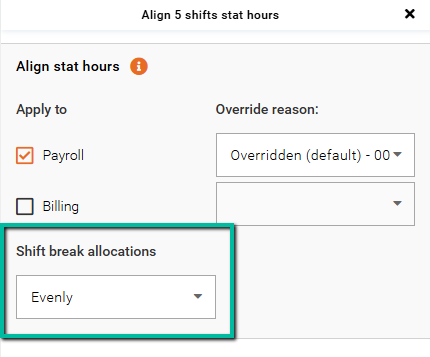
Select how break time should be allocated when a shift spans midnight.
The selected Shift Break Allocation Method determines how break time is distributed between the shift start date and the following day.
Complete the alignment process and save your changes.
Shift Break Allocation Methods
Evenly
Splits the break 50/50 across both days, regardless of how many hours fall on each day.
This is the default option.
Proportionately
Splits the break based on how many shift hours fall on each day.
Example: If a 3-hour shift has a 30-minute break, with 2 hours on the first day and 1 hour on the next day, then 20 minutes of break is applied to the first day and 10 minutes to the next day.
Current Day
Applies the entire break to the shift start date.
Next Day
Applies the entire break to the next day.
Middle of Shift
Deducts the break from the middle of the shift, regardless of how the shift hours are split across the two days.
Results After Aligning Stat Hours
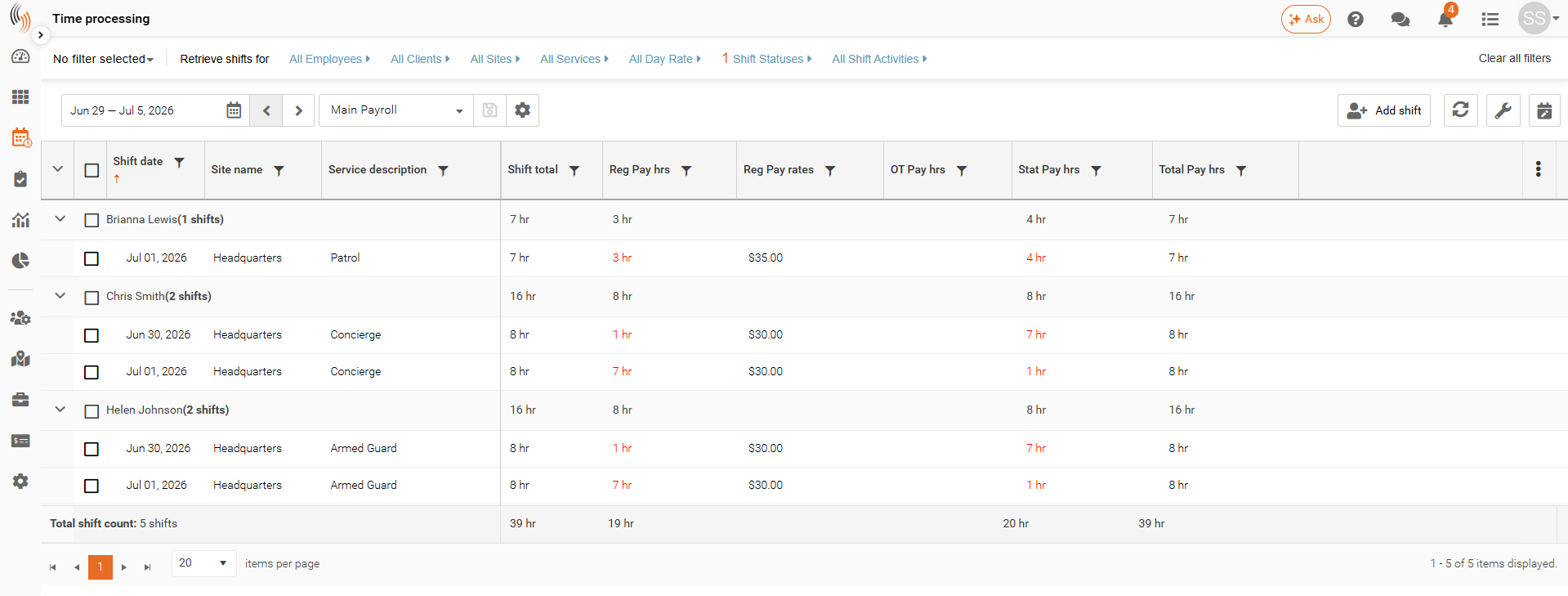
After Align Stat Hours is applied, the system redistributes the hours between Regular and Stat hours based on the portion of each shift that occurred on the stat holiday.
Updated values are highlighted in red in the Time Processing grid.
In this example:
- Hours worked on the stat day have been moved to Stat Pay hrs.
- Hours worked outside the stat day remain under Reg Pay hrs.
- The red values indicate the hours that were changed by the alignment.
- These updated hours will be used for payroll and billing unless further changes are made before time is approved.
Approved Shifts
If a shift has already been approved in Time Processing, the approved portion cannot be modified.
For example, if a shift has been approved, you will not be able to Align Stat Hours until the approval is removed. After the approval is removed, the shift can be updated and approved again.
To align stat hours for an approved shift, you must first remove the time approval.
Remove Time Approval
- Select the shift(s) that require changes.
- Click the wrench icon in the top-right corner.
- Select Remove Shifts Time Approval.
- Make the required changes, such as aligning stat hours.
- Re-approve the shift when your updates are complete.
Once the approval has been removed, the Payroll and Billing hours can be adjusted as needed.
Pay Stat Settings
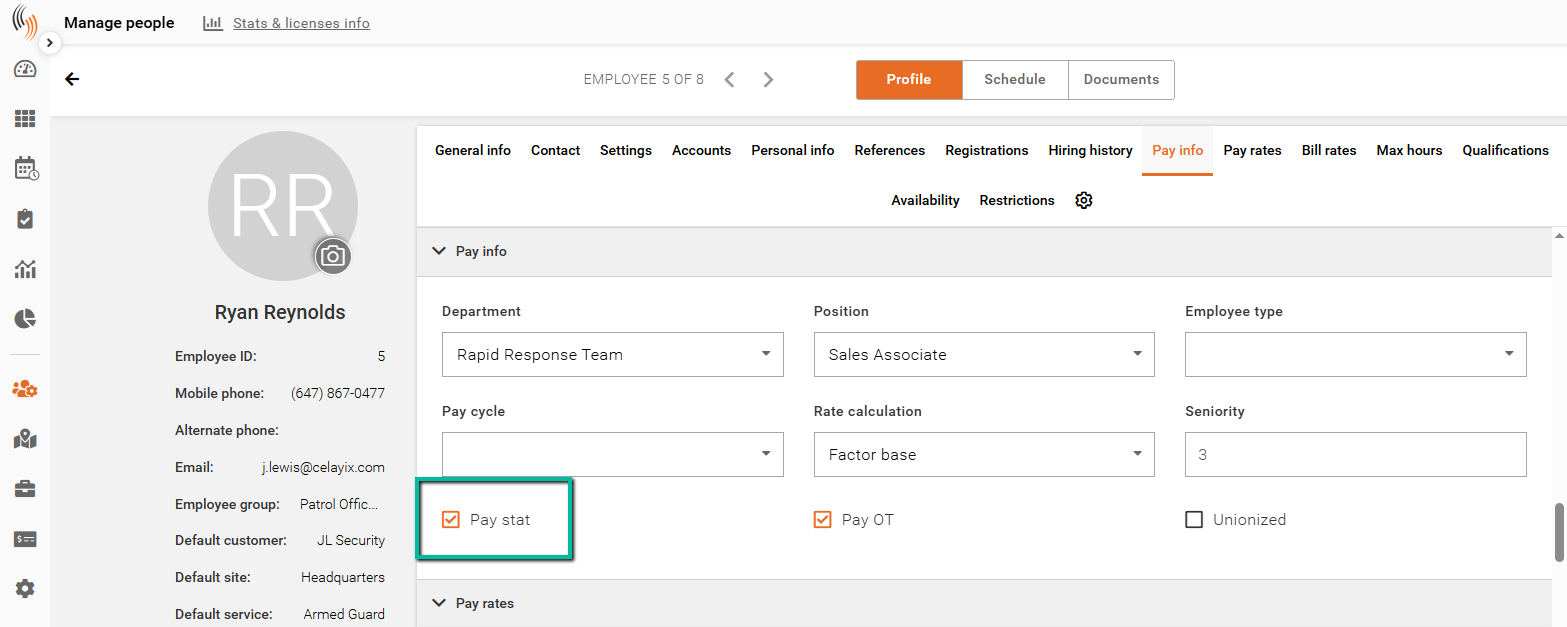
The employee's Pay Stat setting determines whether they are entitled to stat pay.
This setting is shared between Schedule Xpress and eTime Xpress. If it is changed in one system, it will update in the other.
In Schedule Xpress
- Go to Manage People.
- Select the employee.
- Open Pay Info.
- Review the Pay Stat checkbox.
If the checkbox is selected, the employee is entitled to stat pay. If it is not selected, the employee will not receive stat pay.
Aligning Stat Hours When Pay Stat Is Disabled
If an employee is not entitled to stat pay, their pay hours will remain regular.
However, billing hours may still be calculated as stat for the portion of the shift that occurred on the stat day.
Error Messages
If a shift cannot be aligned, you may see an error message such as:
Error. 4 out of 4 shift(s) could not be updated: Shifts are not spanning midnight into or out of a holiday day or already aligned.
This may happen because:
- The shift does not span midnight into or out of a stat holiday.
- No stat holiday exists for the shift's start or end time.
- The shift has already been aligned.