
Enable Location Services for Geofencing
Enable Location Services on your device to allow Team Xpress to accurately detect your location for map and geofencing features.
Turn on Location Services to ensure mapping and geofencing features work correctly in Team Xpress.
Location Services use your device’s GPS to confirm your position, which is required for features like Map and check-in.
Turn On Location Services
To allow Team Xpress to access your location, complete both steps below using the instructions for your device.
1. Enable Your Phone’s Location Services
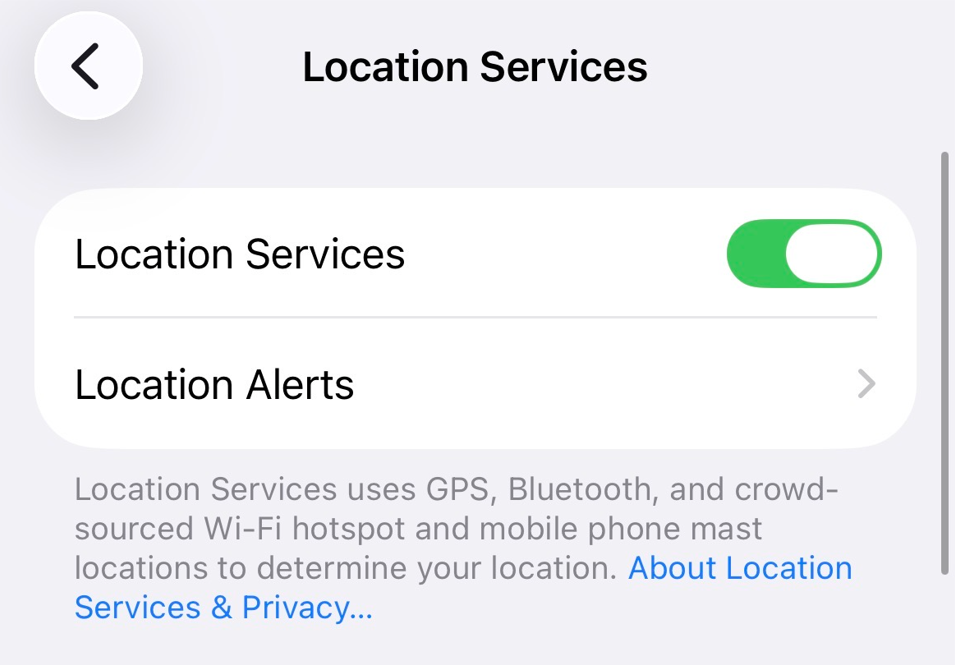
- iPhone: Open Settings → Privacy & Security → Location Services, then turn on Location Services.
- Android: Open Settings → Location, then turn on Use Location or Location access.
The image below shows this setting on an iPhone.
2. Allow Team Xpress to Access Your Location
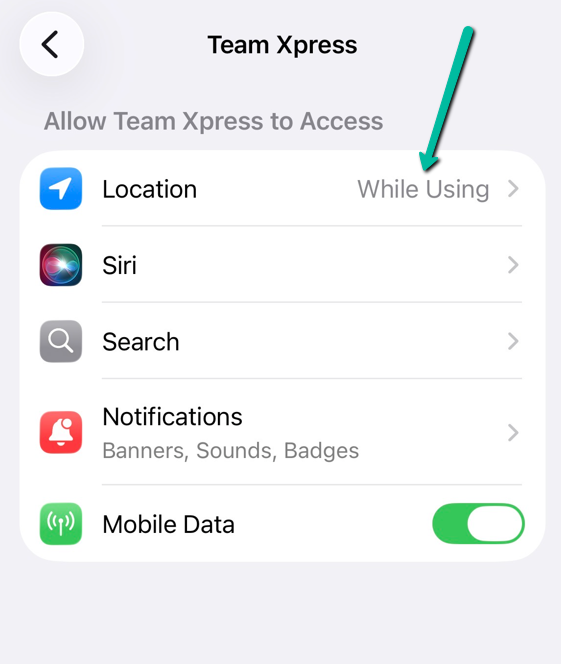
- iPhone: Open Settings → Apps → Team Xpress → Location, then select While Using the App.
- Android: Open Settings → Apps → Team Xpress → Permissions → Location, then select Allow only while using the app.
Tip: Setting names may vary depending on your device. If you need assistance, contact your phone manufacturer or mobile provider.
The image below shows the Team Xpress location permission on an iPhone.
Why Location Services Are Required
Location Services are needed for:
- Viewing your position on the Map
- Verifying you are within the geofence
- Allowing check-in at your shift location
If Location Services are turned off, these features may not work as expected.