Manage Employee Availability
Employee Availability allows you to track when employees are available to work and use that information when creating schedules. In Schedule Xpress, availability can be submitted by employees through Team Xpress or managed directly by administrators. This helps ensure schedules are built using accurate availability information while providing flexibility to update and maintain availability records as needed.
Access Employee Availability
Employee Availability can be managed through individual employee profiles in Manage People.
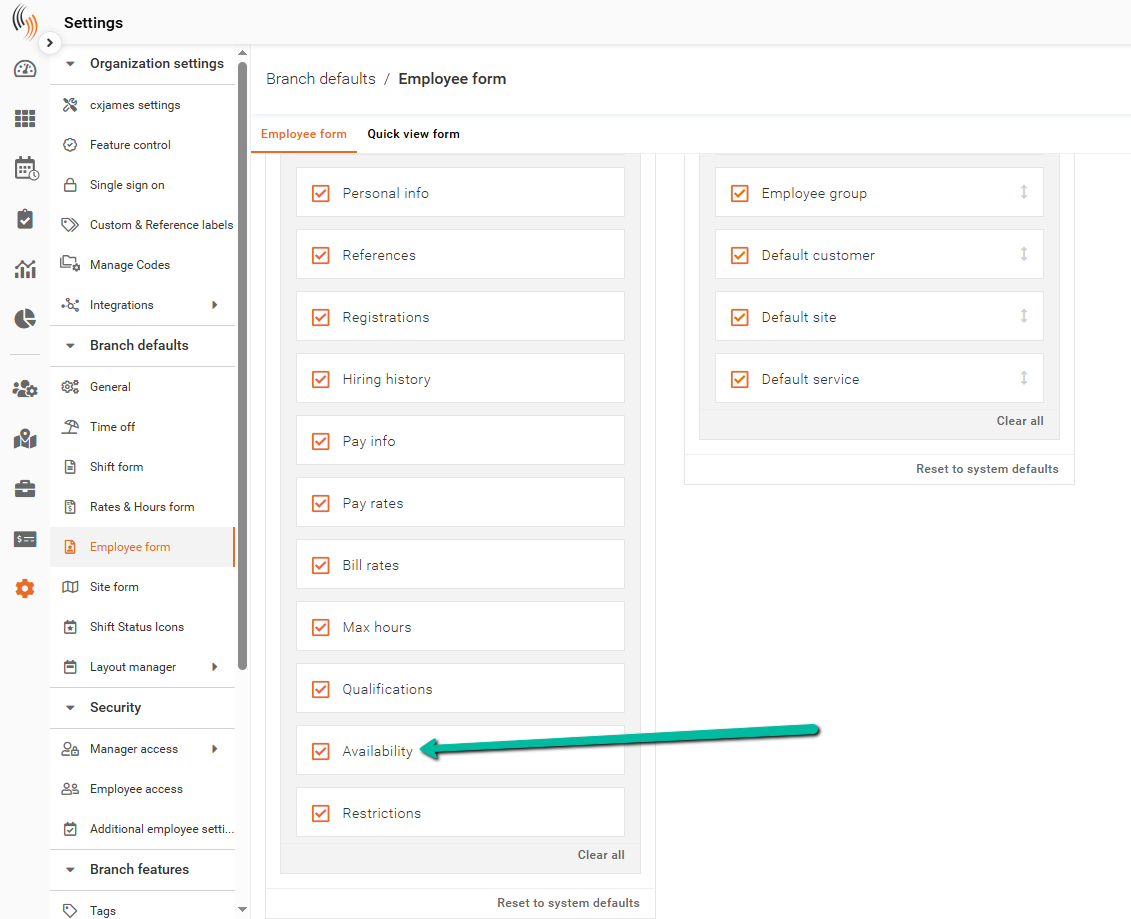
To enable this feature, navigate to:
Settings → Branch Defaults → Employee Form
Ensure Availability is selected under Employee Form Section Visibility.
Once enabled, the Availability section will appear within each employee profile.
View Availability Records
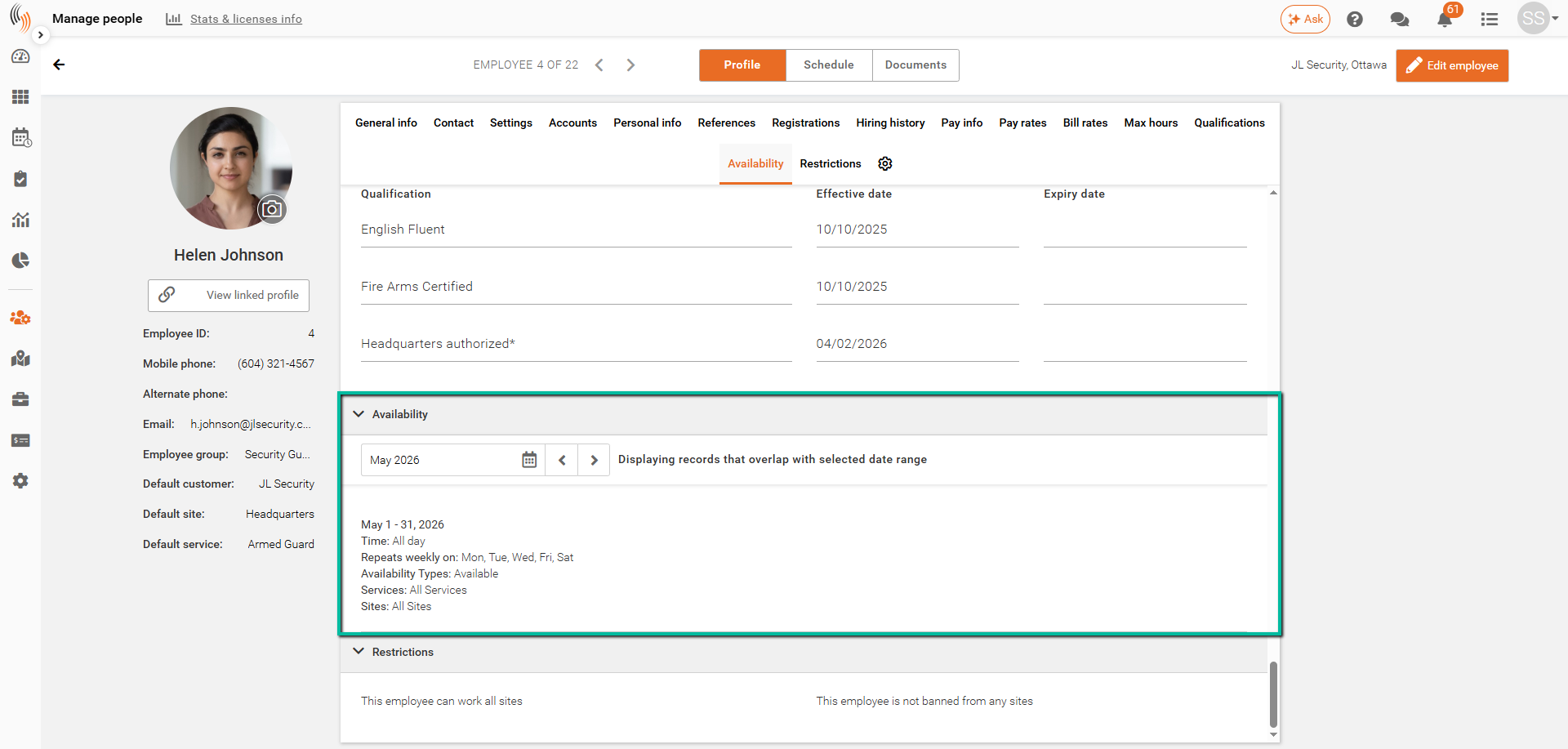
In the employee profile, use the Availability section to view submitted records.
- Select a date range (up to 90 days)
- Records are displayed in reverse chronological order
You can review records submitted through Team Xpress or those created by admins.
Add Availability for Employees
To create an availability record on behalf of an employee:
- Open the employee profile in Manage People.
- Click Edit Employee in the top-right corner.
- Navigate to the Availability section.
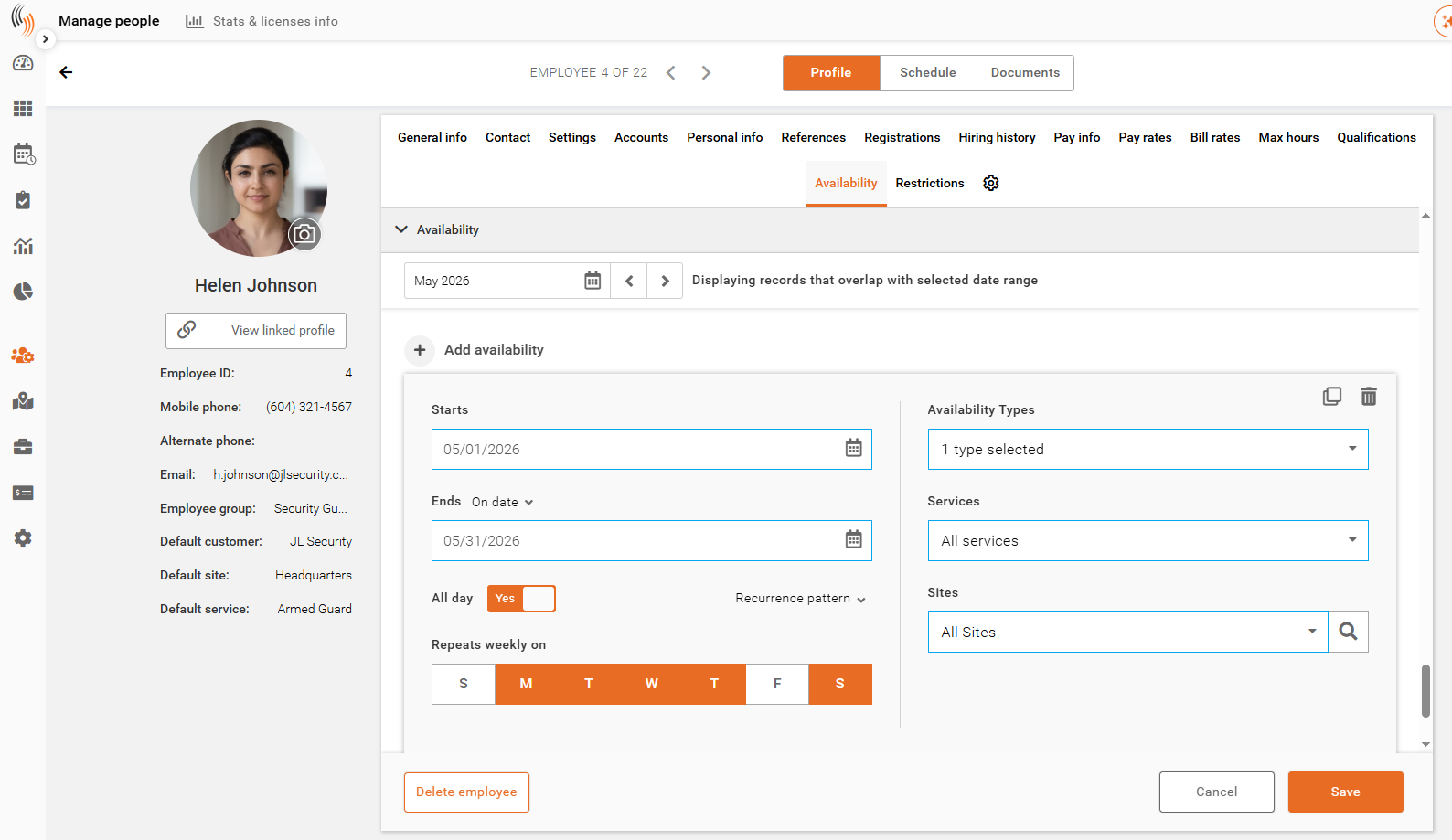
- Click Add Availability.
- Complete the required fields.
- Click Save.
When creating an availability record, you can define the following:
- Date Range – Sets the start and end dates for when the availability applies.
- Time (or All Day) – Defines the specific hours the employee is available to work or marks the entire day as available.
- Recurrence Pattern or Continuous Duration – Recurrence Pattern repeats the availability on selected days each week, while Continuous Duration applies the availability continuously throughout the defined date range. You can switch between these options depending on your scheduling requirements.
- Availability Type – Defines the type of availability being recorded, such as available or unavailable.
- Services (Roles) – Specifies which Services or roles the availability applies to.
- Sites – Defines the Sites where the employee is available to work.
Edit, Clone, or Delete Records
Availability records can be updated at any time.
Use the available options to:
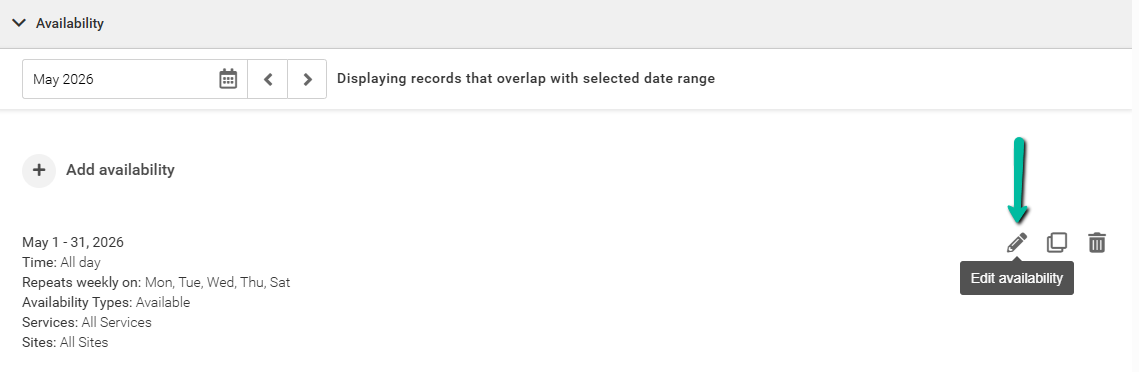
- Edit an existing record
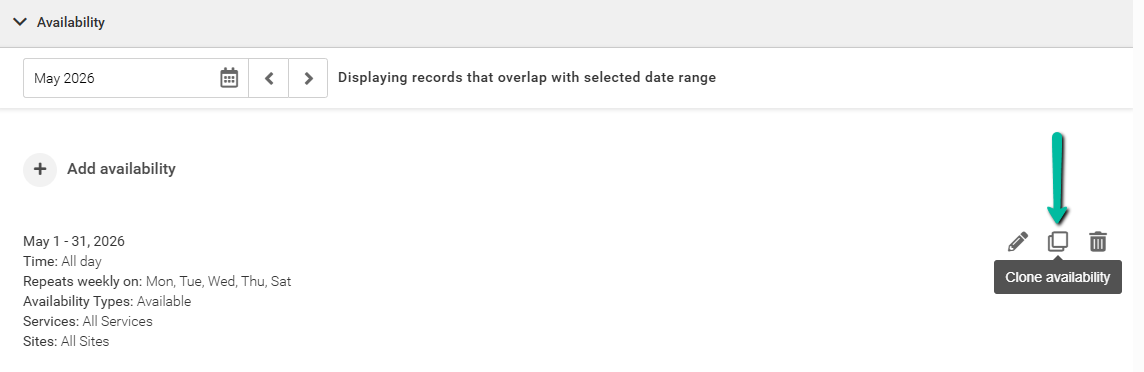
- Clone a record
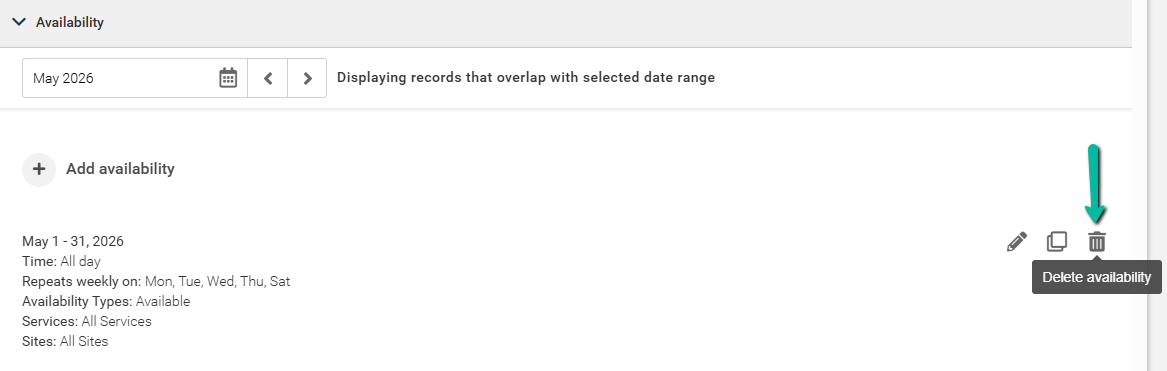
- Delete a record
See the images below.
Edit Availability:
Clone Availability:
Delete Availability:
View Availability in the Schedule
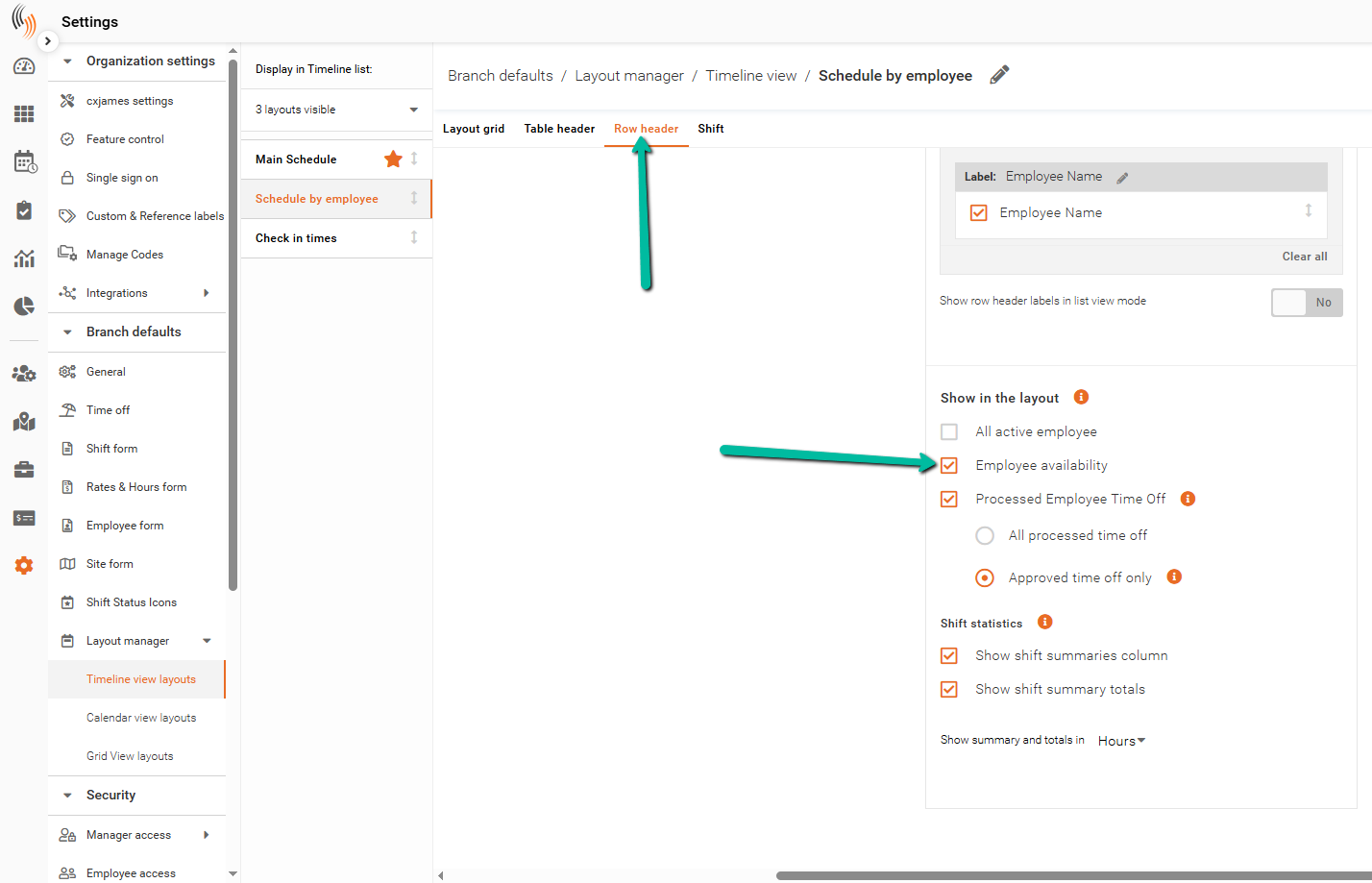
To display Availability in the Schedule, click the Settings cog and select an employee-centric layout that includes Employee ID and Employee Name within the Row Header options.
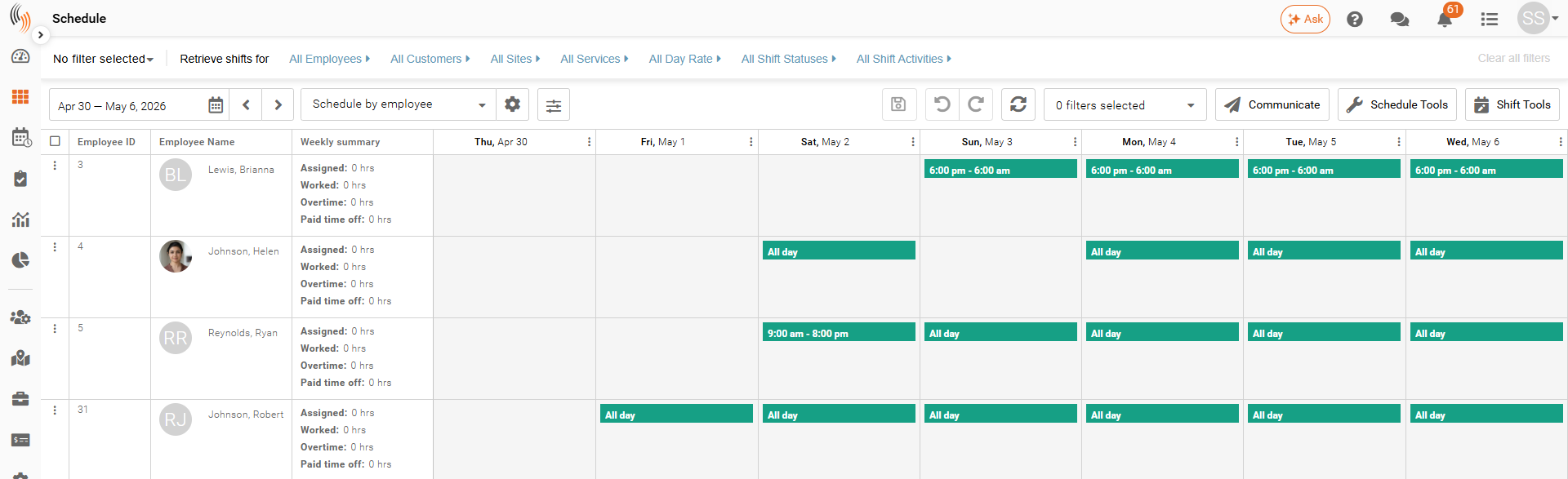
Once enabled, employee availability records will be displayed directly within the schedule, making it easier to view availability alongside scheduled shifts.
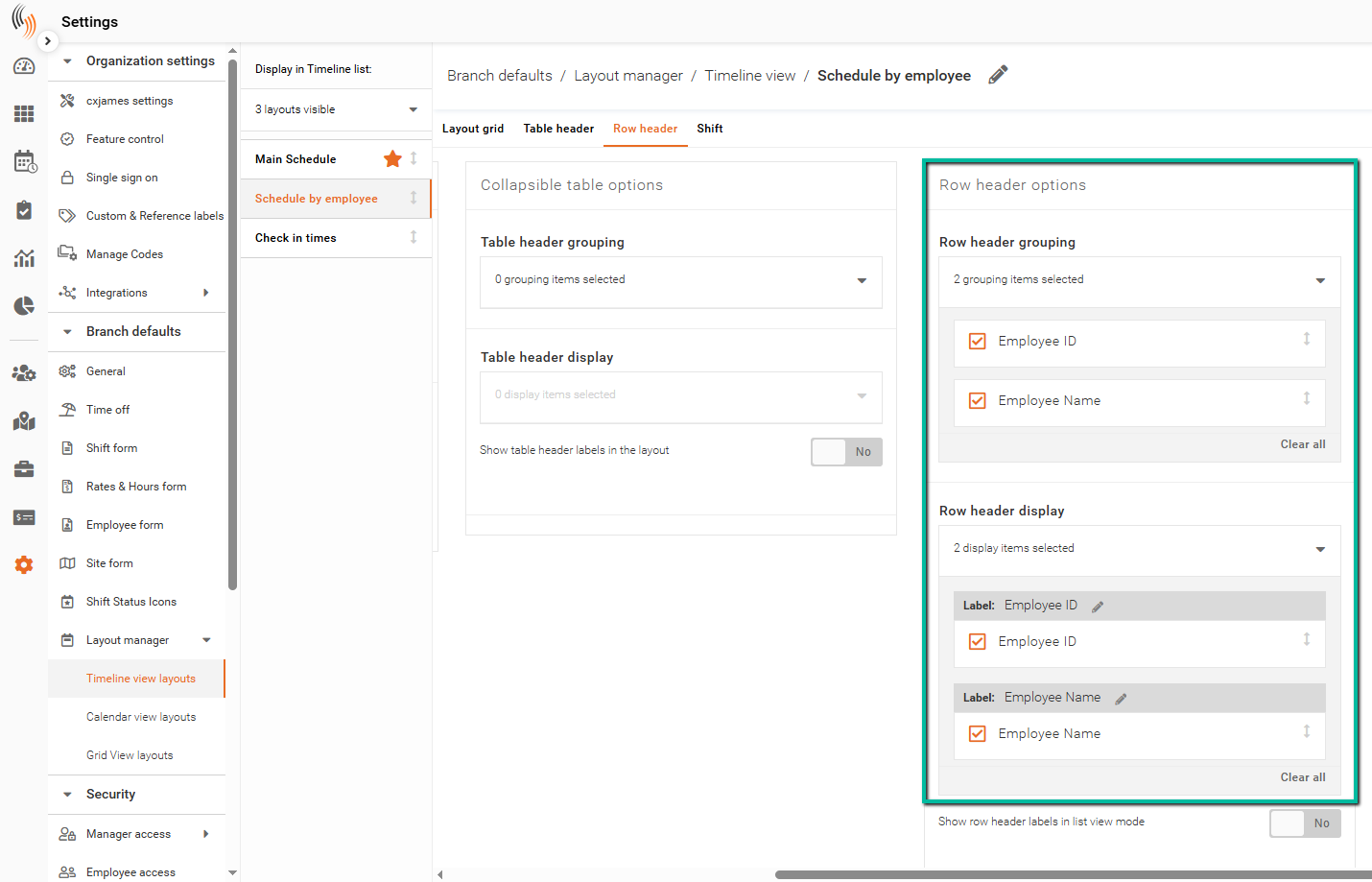
To display Availability in the Schedule, click the Settings cog and select an employee-centric layout that includes Employee ID and Employee Name within the Row Header options.
Under Row Header Options, ensure Employee Availability is selected.
Availability records will then appear as green blocks within the schedule, making it easier to view employee availability alongside scheduled shifts.
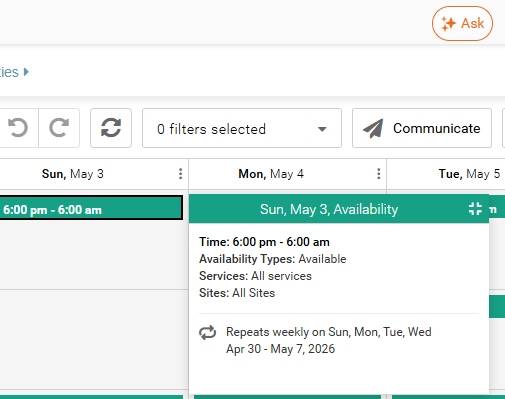
You can single-click a record to view more detailed information.
View Availability in Manage People
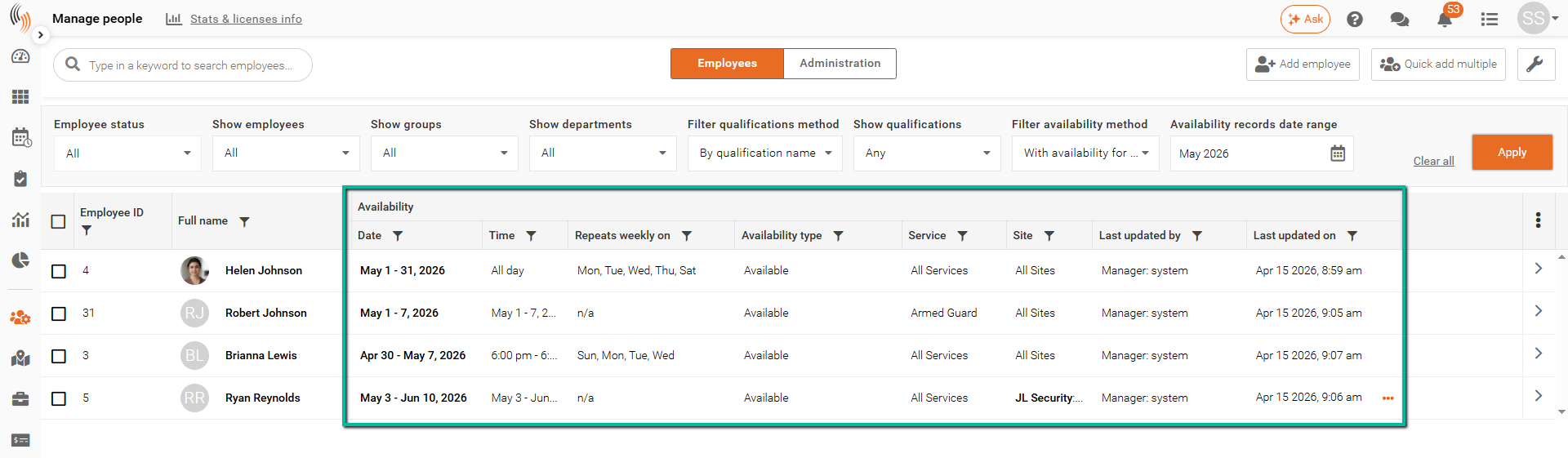
Use the Three Dots (⋮) menu to display Availability fields for employees within the Manage People grid.
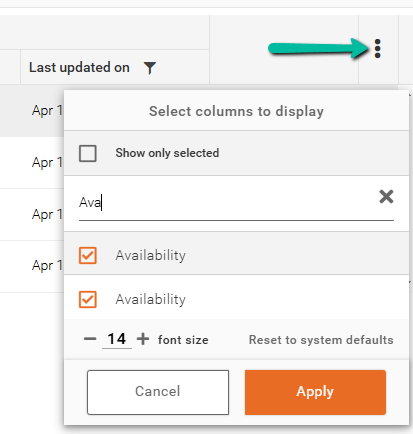
Available Availability fields include:
- Date
- Time
- Availability Type
- Service (Role)
- Site
- Last Updated Details
Displaying these fields allows administrators to quickly review employee availability information directly from the Manage People grid without opening individual employee profiles.
Filter by Availability
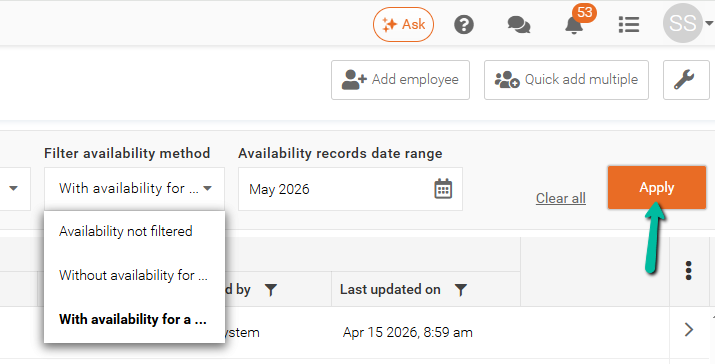
Use the Filter Availability Method dropdown to filter employees based on their availability status.
You can choose to view:
- Employees with Availability
- Employees without Availability
- Availability Not Filtered (All Employees)
Use the Availability Records Date Range field to select the period you want to review.
Once configured, click Apply to update the results and display matching employees.