Manage Workflows
View and update existing Workflows and review their run history.
Use the Workflows and Runs tabs to manage your existing Workflows and monitor their activity.
Manage Existing Workflows
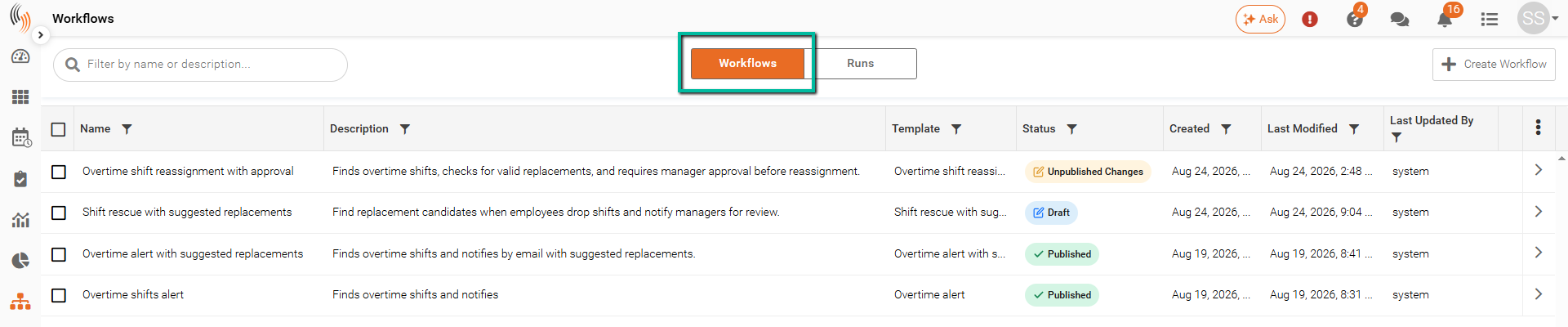
Select the Workflows tab to view all existing Workflows.
The list displays information including the Workflow's:
- Name
- Description
- Template
- Status
- Created date
- Last Modified date
- Last Updated By
Use the search bar and column filters to find a specific Workflow.
Select the arrow beside a Workflow to open it. From here, you can review and change its configuration, including details such as the Workflow name, trigger, lookup criteria, conditions, actions, and other settings available for the selected template.
After making changes, validate the Workflow and save or publish your changes as required.
Clone a Workflow
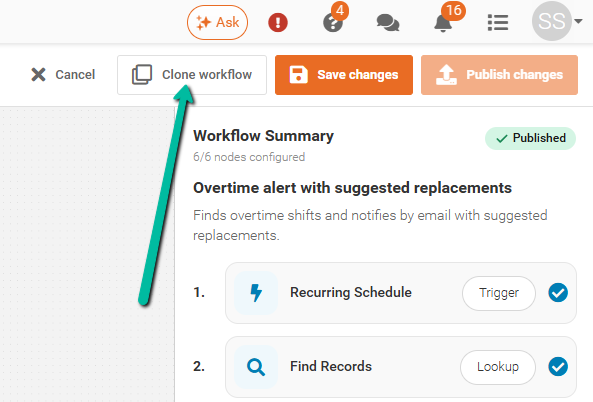
You can clone an existing Workflow when you want to create a new Workflow using similar settings.
- Open the Workflow you want to copy.
- Select Clone workflow.
- Update the cloned Workflow's name and configuration as required.
- Validate and publish the new Workflow when ready.
Cloning allows you to use an existing configuration as a starting point instead of configuring a new Workflow from the beginning.
View Workflow Runs
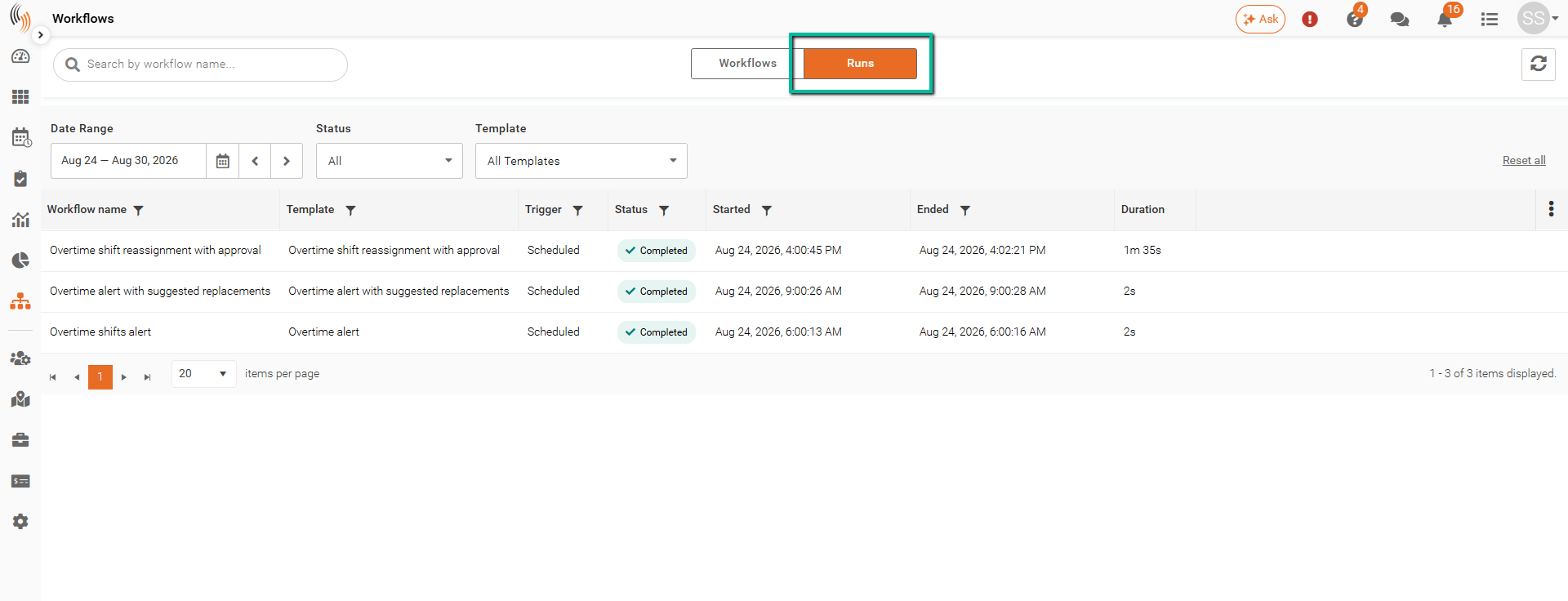
Select the Runs tab to review the history of your Workflows.
Each run displays information including:
- Workflow name
- Template
- Trigger
- Status
- Started
- Ended
- Duration
Use the Date Range, Status, and Template filters to narrow the results and find specific Workflow runs.
The run history can be used to confirm that a Workflow has run and review its execution status and timing.
Workflow Status
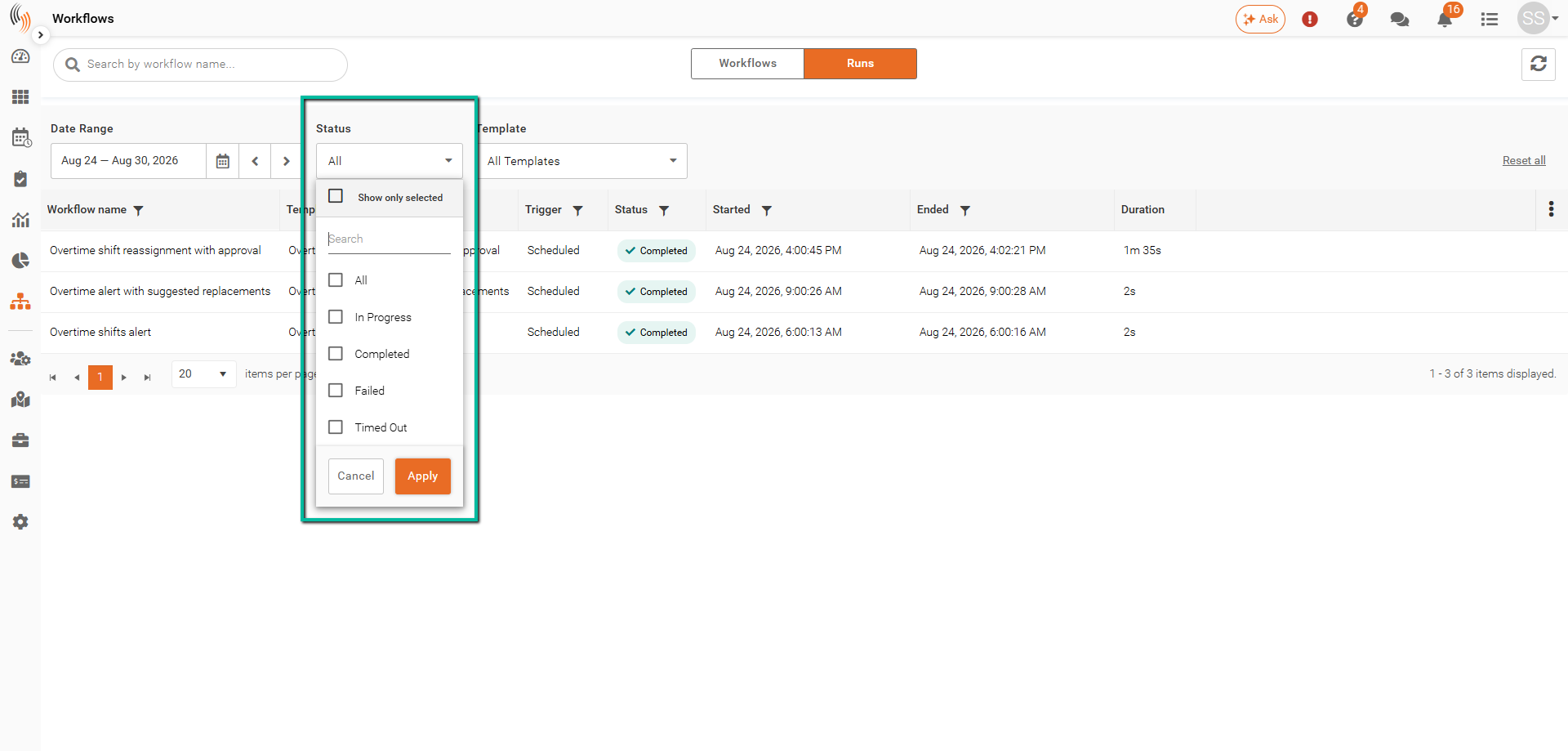
You can use the Date Range, Status, and Template filters to narrow the results. You can also search for a specific Workflow by name.
Workflow run statuses include:
- In Progress – The Workflow is currently running.
- Completed – The Workflow finished successfully.
- Failed – The Workflow encountered an issue and could not complete successfully.
- Timed Out – The Workflow did not complete within the allowed processing time.
Use the Status filter to quickly identify Workflow runs that may require further review.