Deactivate or Archive Employees
When an employee is temporarily away or leaves your organization, change their status to Inactive or Archived to keep your employee list up to date while preserving their records. Inactive employees continue to occupy a license, while Archived employees free up a license for reassignment.
Employee Status Types
Employee records can be managed using three distinct statuses to accurately reflect an employees status within your organization.
Here are the different status types and what they mean:
- Active – Employees who are currently working and have full system access. Active employees count toward your total active license allocation and occupy an available license.
- Inactive – Employees who are temporarily not working (e.g., on leave or suspended) but whose records remain in the system. Inactive employees still count toward your active license total and continue to occupy a license.
- Archived – Employees who are no longer with the organization or whose records are retained for historical purposes only. Archived employees do not count toward your active license total, freeing up a license for reassignment while preserving their data for reporting and compliance purposes.
Filter Employees by Status
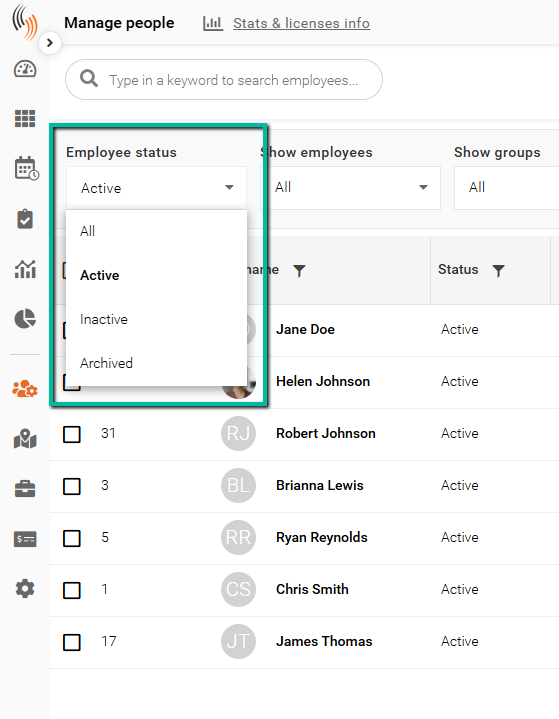
You can filter the employee list by the following status options:
- All – Displays all employees regardless of status.
- Active – Displays only employees who are currently active.
- Inactive – Displays employees who are marked as inactive.
- Archived – Displays employees whose profiles have been archived.
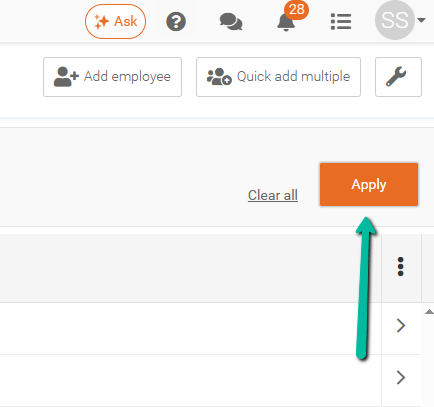
After selecting the status you wish to search by, make sure to click the orange Apply button above the grid on the right.
Clear All Employee Status Filters
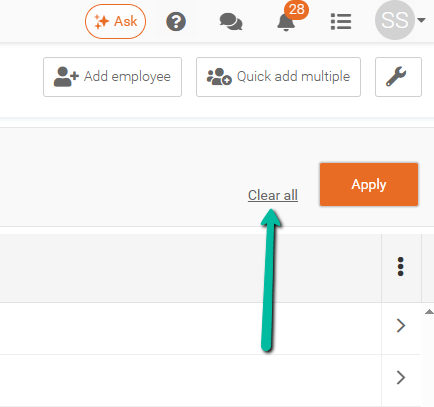
To return to the default view showing only Active employees, click the Clear All button located next to the orange Apply button at the top right above the grid.
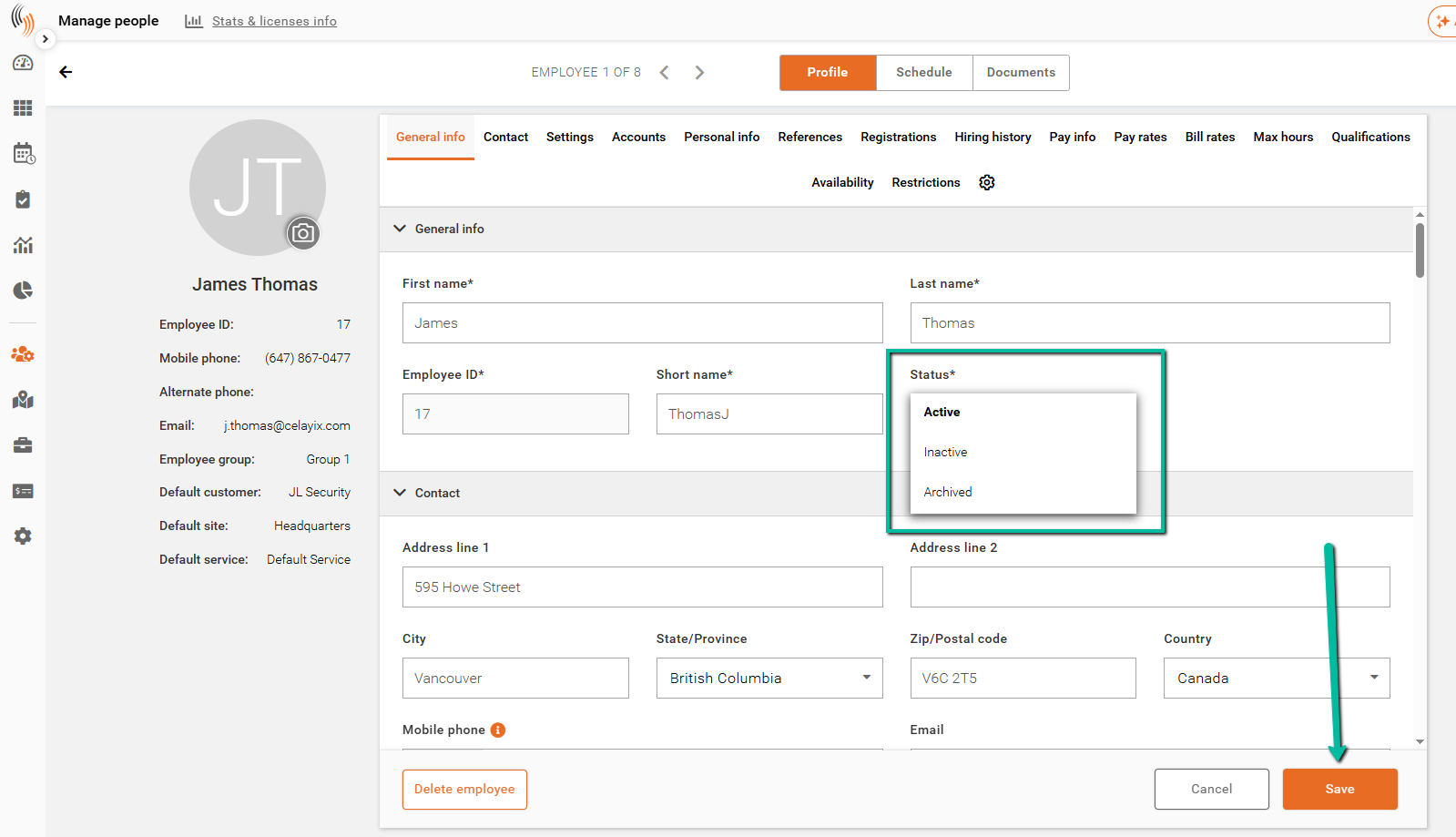
Changing Employee Status: Active → Inactive or Archived (Deactivation)
To change an employee’s status from Active to Inactive or Archived:
- Go to Manage People.
- Open the employee’s profile.
- In the Contact section, locate the Status field.
- Change the status from Active to Inactive or Archived.
- Click Save to apply the change.
Important
- Changing the status to Inactive removes the employee from active workflows, but their account still counts as an Active license, as it's more like a temporary layoff.
- Setting the status to Archived removes the employee from active workflows and frees up a license slot for a new employee.