
Sync Schedule to iCalendar
This guide explains how to add your Team Xpress work schedule to your personal calendar using iCalendar.
Once subscribed, your scheduled shifts will automatically appear in your calendar application.
Supported calendar applications include:
- Google Calendar
- Microsoft Outlook
- Apple Calendar (iPhone and iPad)
Note: The iCalendar feature is optional and may not be enabled by your organization. Access depends on your company's settings.
Update Schedule
Team Xpress updates your iCalendar feed once per day.
If you need the latest schedule updates immediately, remove the calendar subscription and subscribe again using your iCalendar URL.
Get Your iCalendar Link
Before subscribing, you must generate your personal iCalendar URL.
In Team Xpress, go to:
My Account > Preferences > iCalendar
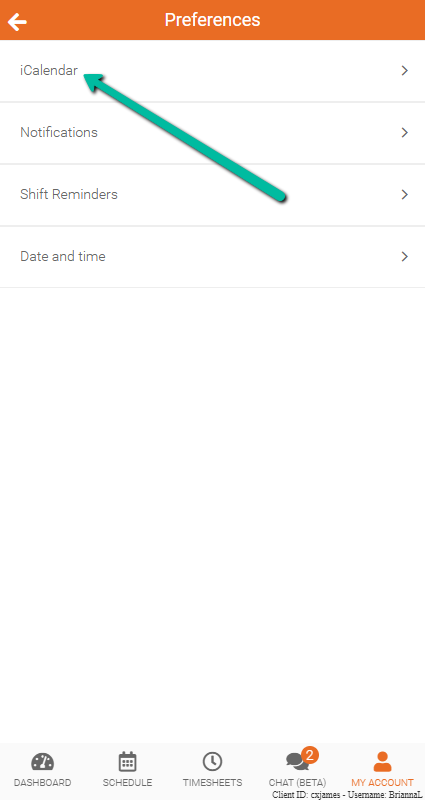
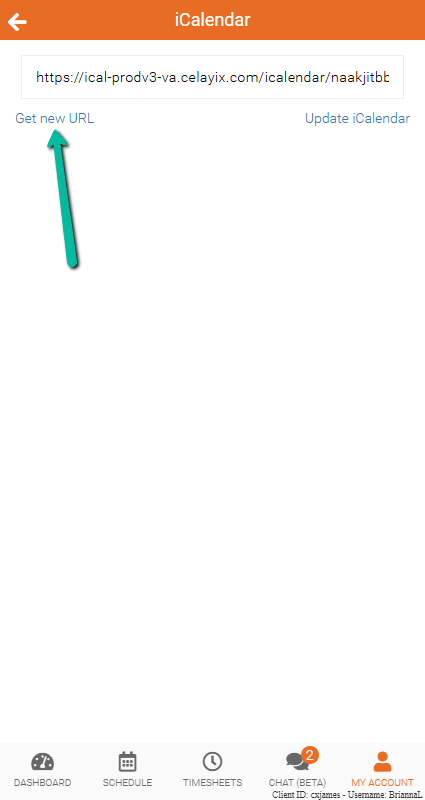
Select Get New URL to generate your personal iCalendar link.
You will use this URL when subscribing through Google Calendar, Outlook, or Apple Calendar.
Note: If your schedule is not displaying correctly, select Update iCalendar and refresh your calendar application.
Before You Start
The examples in this guide are based on current versions of Google Calendar, Outlook, and Apple Calendar.
Because these applications are maintained by third parties, menus and settings may change over time. The instructions below should still serve as a general guide.
Subscribe to Your Calendar
The example below shows how to subscribe to your Team Xpress schedule using Apple Calendar. The process may vary slightly depending on the calendar application you use.
Open the iCalendar Link
Email the iCalendar URL to yourself and open the email on your iPhone or iPad.
Copy the iCalendar URL.
Subscribe
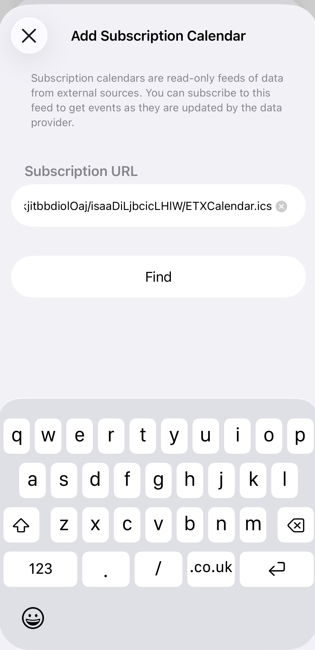
After copying the URL, Apple Calendar will search for the calendar and begin the subscription process.
Tap Find to continue.
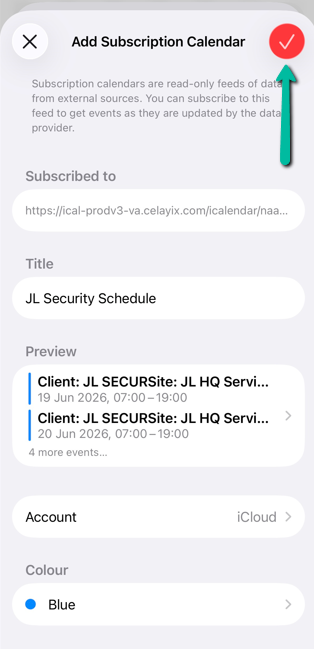
Name Your Calendar
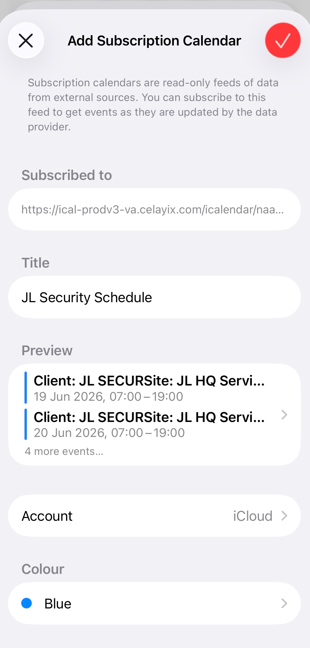
Next, you'll have the option to customize your calendar by:
- Entering a calendar name
- Choosing a calendar color
- Configuring notification settings
Complete the Subscription
Once you're happy with the calendar settings, tap the check mark in the top-right corner to complete the subscription.
View Your Schedule
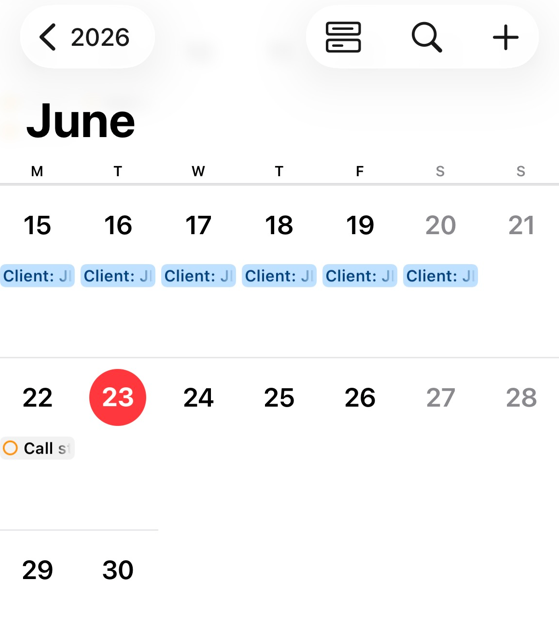
Your scheduled shifts will appear in your calendar.
Past shifts may appear greyed out, indicating that they have already occurred.
Shift Details
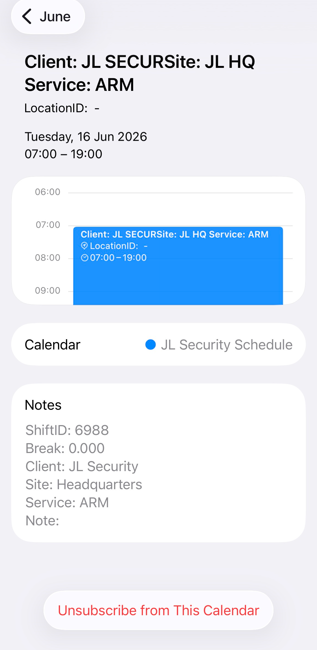
Tap any shift to view additional information.
Updates
Calendar applications refresh subscribed calendars on their own schedule.
If you need the latest schedule updates immediately, remove the calendar subscription and subscribe again using your iCalendar URL.
Schedule Not Updating
If your schedule is not updating:
- Go to My Account > Preferences > iCalendar in Team Xpress.
- Select Update iCalendar.
- Refresh your calendar application.
If updates still do not appear, generate a new URL using Get New URL and subscribe again.
Refresh Frequency
- Team Xpress updates the iCalendar feed once per day.
- Google Calendar typically refreshes subscribed calendars every 24 hours.
- Outlook and Apple Calendar refresh schedules vary and are controlled by the application.
Your iCalendar subscription is read-only. To make changes to your schedule, continue using Team Xpress rather than your calendar application.