
Assign Employee Managers to Route Notifications and Requests
Assign one or more Employee Managers to each employee to direct supported notifications and requests to the people responsible for their team.
Employee-manager routing is available for:
Managers can also filter Time Off and Shift Drop requests to show only employees assigned to them.
Important: Assigning a manager does not automatically enable notifications. You must also enable employee-manager routing for each feature you want to use.
Assign Employee Managers
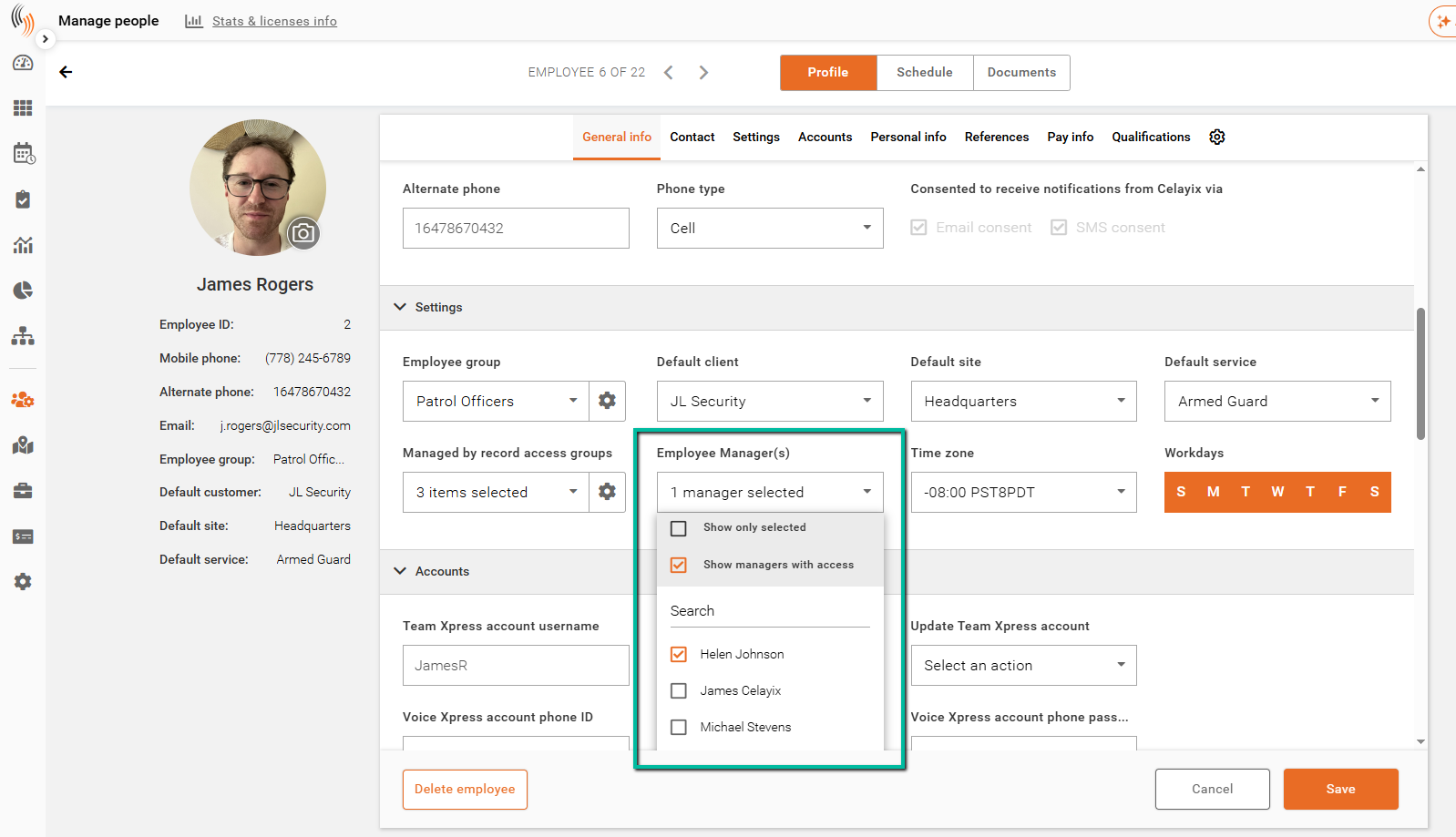
- Open Manage People and select the employee’s profile.
- In the Settings section, locate Employee Manager(s).
- Select one or more managers.
- Click Save.
These assignments determine which managers receive notifications when employee-manager routing is enabled.
Time Off Notifications and Requests
Notify assigned managers about their employees’ time off requests.
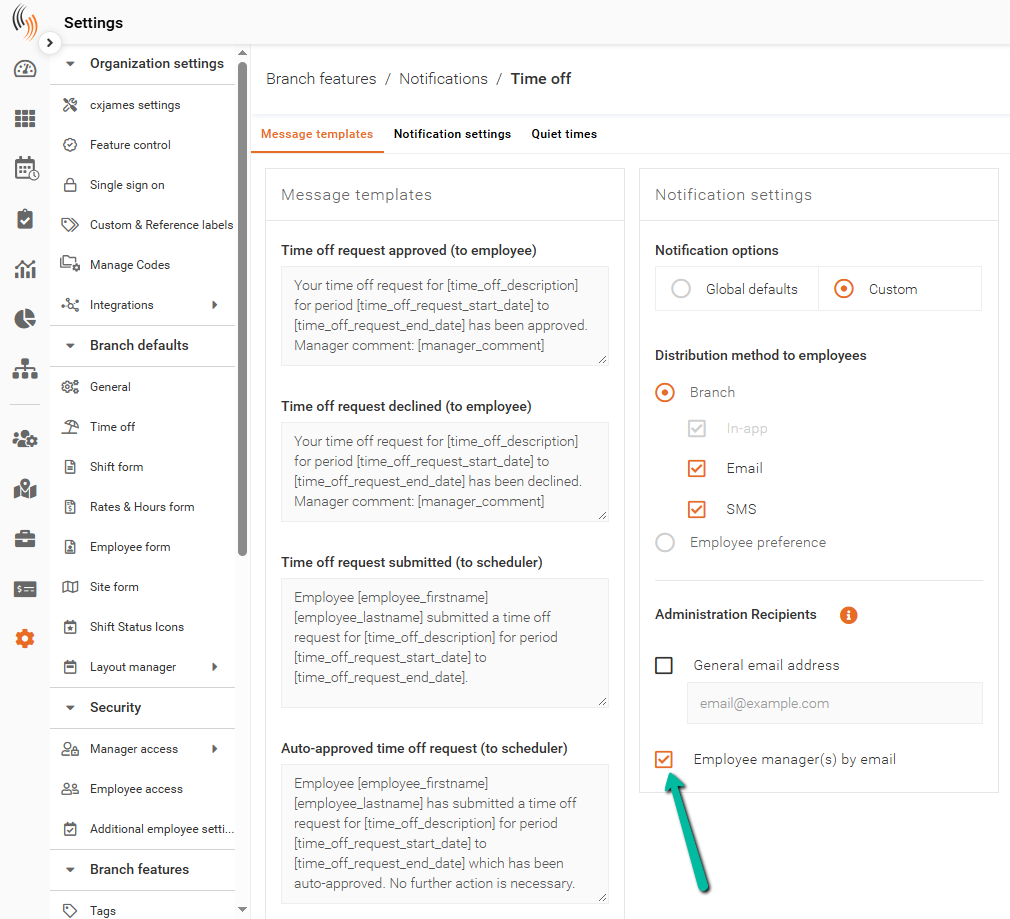
- Go to Settings > Branch Features > Notifications > Time Off.
- Under Notification Settings, select Custom.
- Under Administration Recipients, enable Employee Manager(s) by Email.
- Save your changes.
Search for Time Off Requests from Employees You Manage
If employees have managers assigned through the Employee Managers module, each manager can filter Time Off requests to show only requests from employees assigned to them.
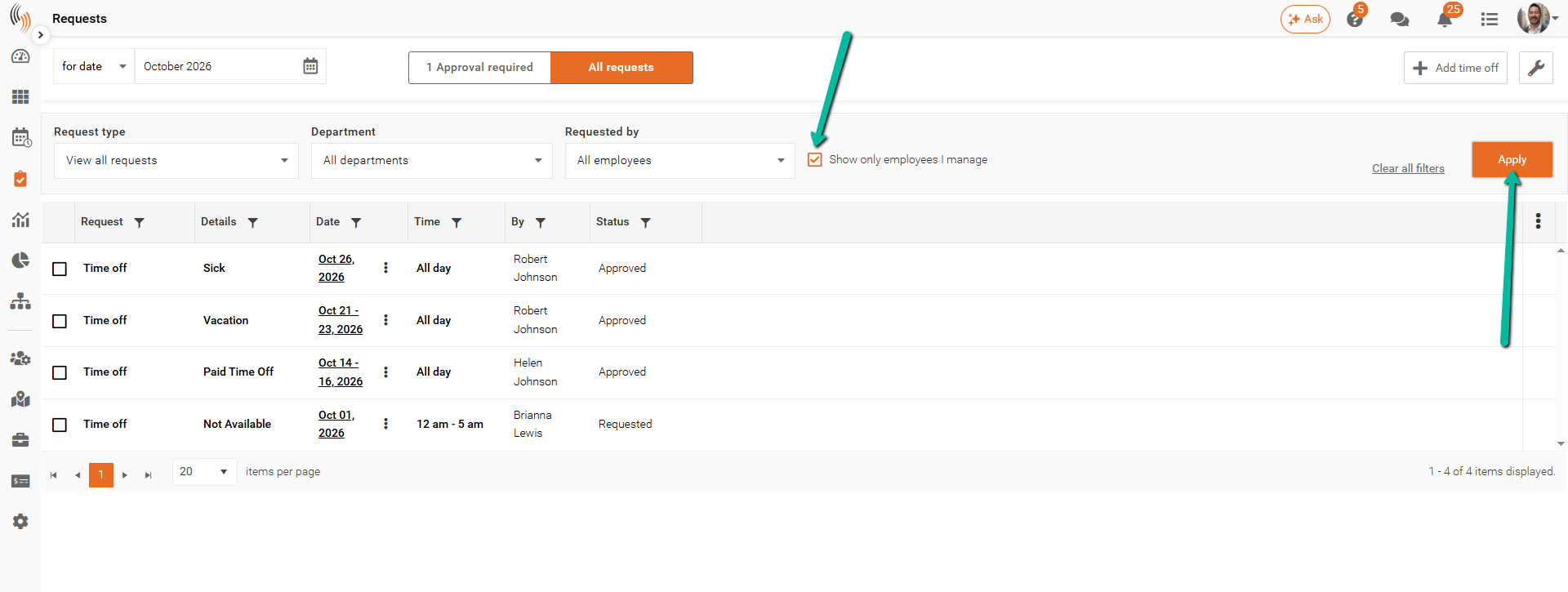
- Open the Time Off request list.
- In the search filters, select Show only employees I manage.
- Click Apply.
The results will show time off requests from employees assigned to you.
Shift Drop Notifications and Requests
Notify assigned managers when their employees submit a shift-drop request.
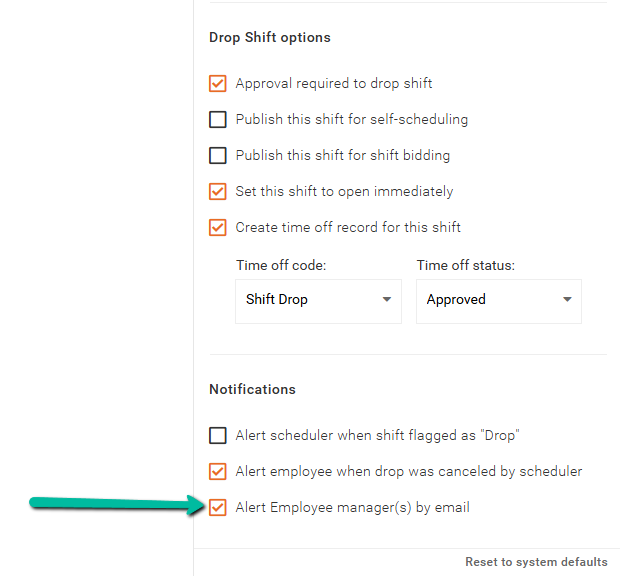
- Go to Settings > Branch Features > Shift Options > Drop Shift.
- Configure notifications to notify the employee’s assigned managers when a shift-drop request is submitted.
- Save your changes.
Search for Shift Drop Requests from Employees You Manage
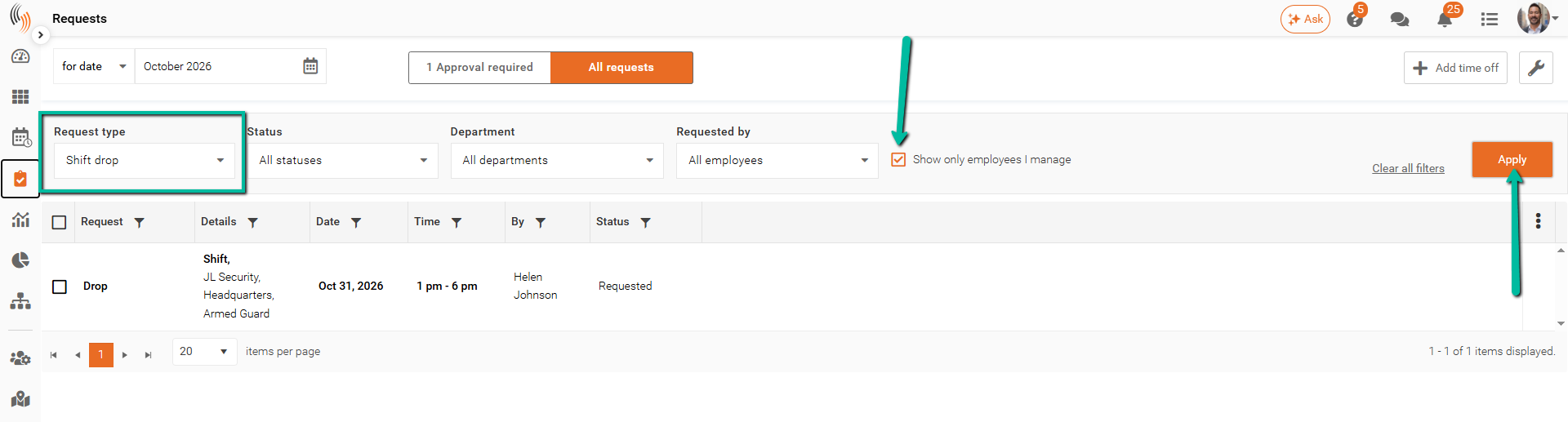
If employees have managers assigned through the Employee Managers module, each manager can filter shift-drop requests to show only requests from employees assigned to them.
- Open Requests.
- Under Request type, select Shift drop.
- Select Show only employees I manage.
- Click Apply.
The results will show shift-drop requests from employees assigned to you.
Shift Confirmation Notifications
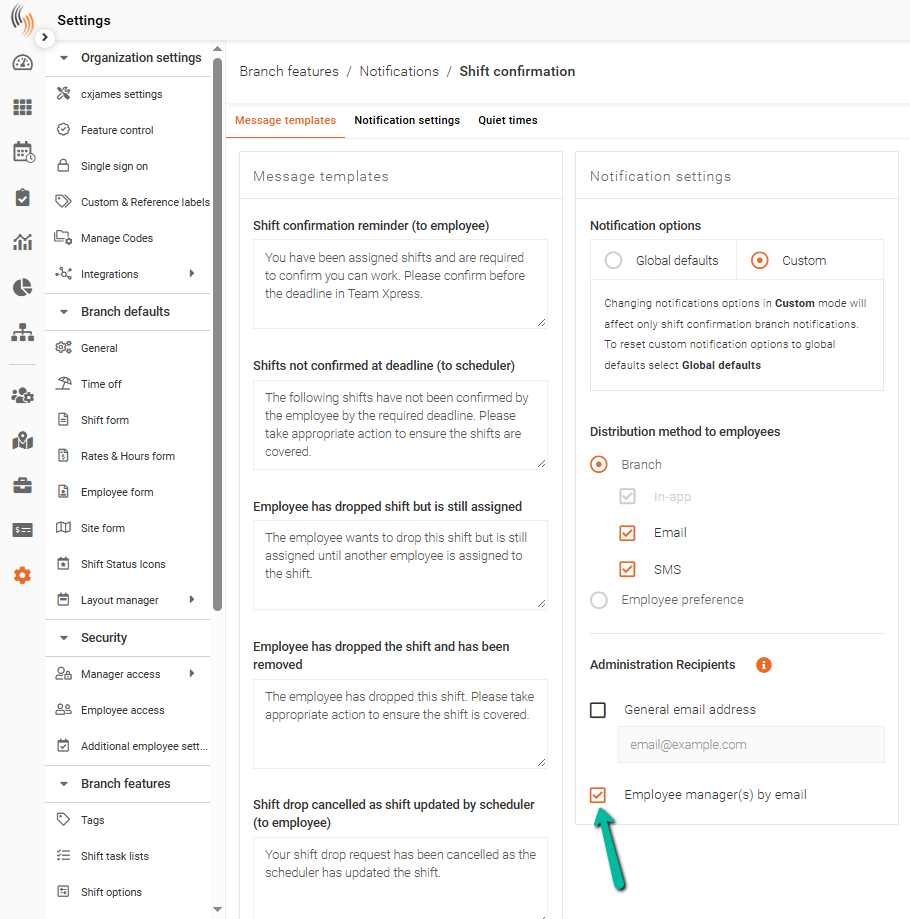
Send supported shift confirmation notifications to assigned managers so they can follow up with their employees.
- Go to Settings > Branch Features > Notifications > Shift Confirmation.
- Under Notification Settings, select Custom.
- Under Administration Settings, enable employee-manager routing for the supported notifications you want managers to receive.
- Save your changes.
Shift Bidding Notifications
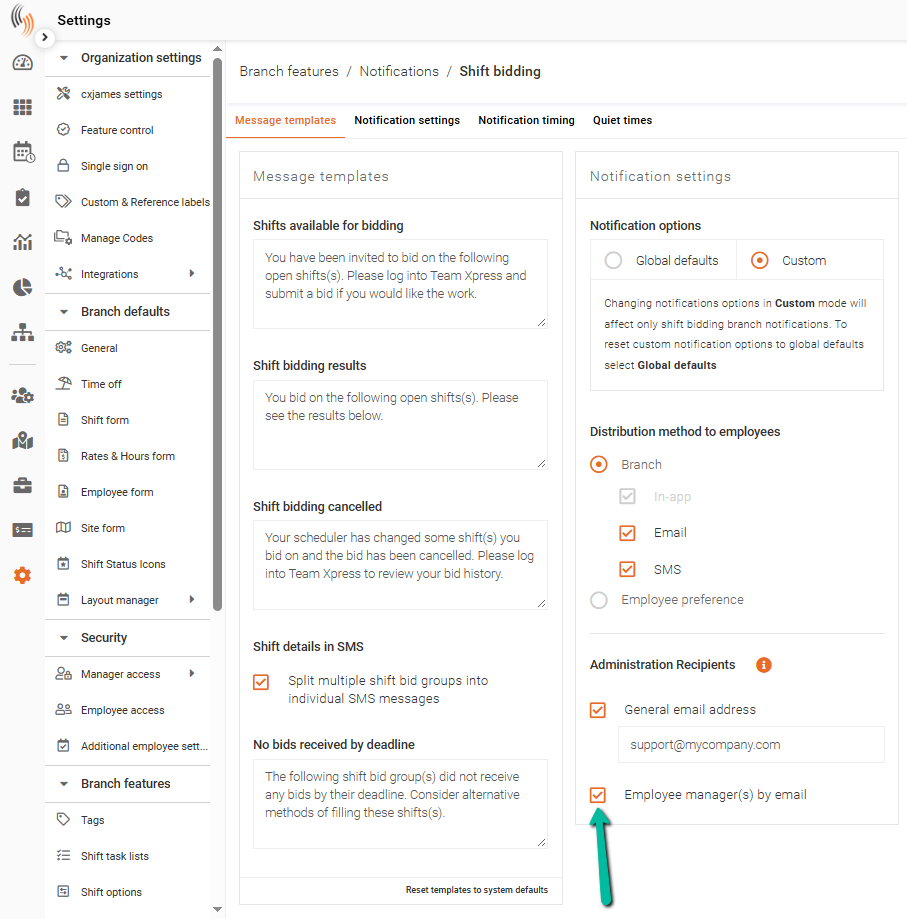
Keep assigned managers informed about their employees’ bidding activity.
- Go to Settings > Branch Features > Notifications > Shift Bidding.
- Under Notification Settings, select Custom.
- Under Administration Settings, enable employee-manager routing for supported bidding updates.
- Save your changes.
eClock Alerts Notifications
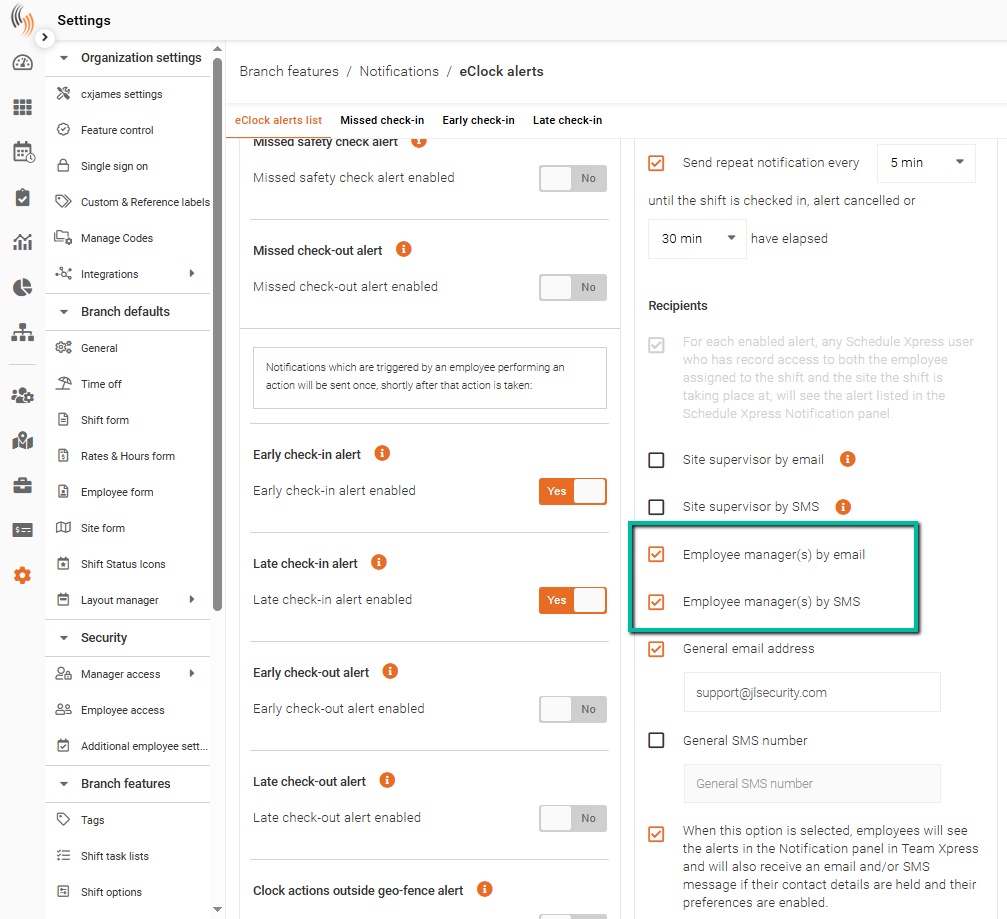
Send supported eClock alerts to assigned managers so they can review and follow up.
- Go to Settings > Branch Features > Notifications > eClock Alerts.
- Under Notification Settings, select Custom.
- Under Administration Settings, enable employee-manager routing for supported eClock alerts.
- Save your changes.
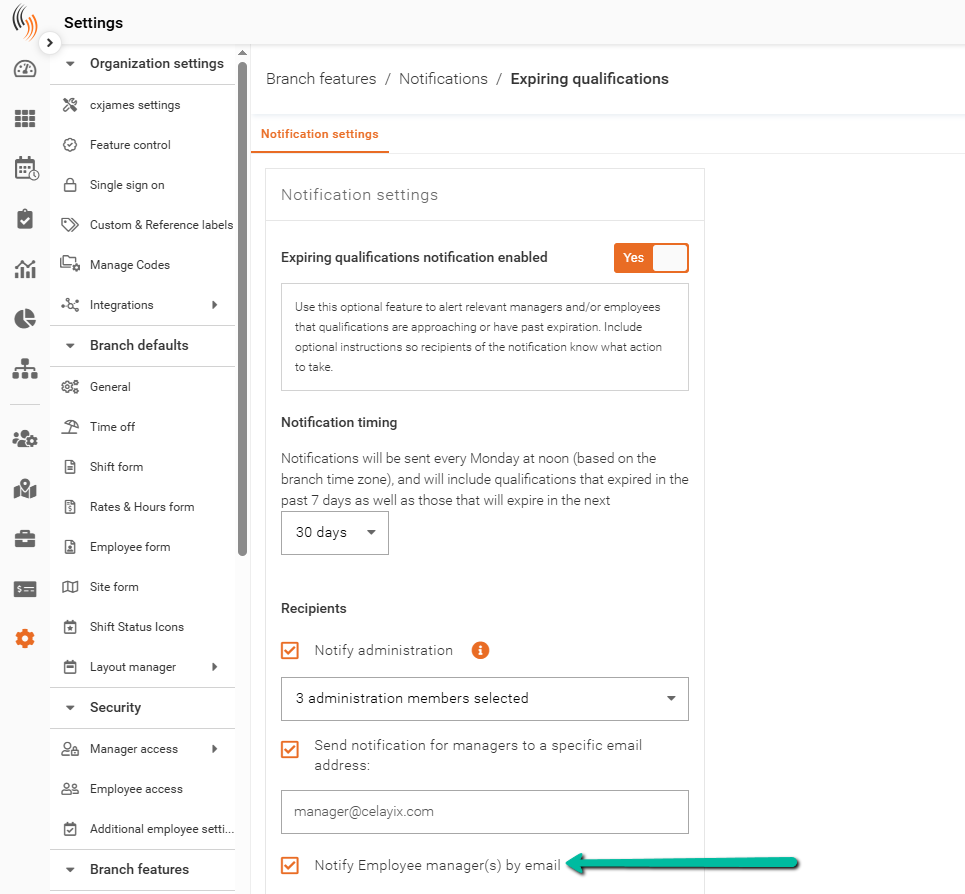
Expiring Qualifications Notifications
Notify assigned managers when their employees’ qualifications are approaching expiry, helping them coordinate renewals.
- Go to Settings > Branch Features > Notifications > Expiring Qualifications.
- Under Notification Settings, select Custom.
- Under Administration Settings, enable employee-manager routing for qualification expiry notifications.
- Save your changes.
Check Your Setup
If an assigned manager is not receiving the expected notifications, check the following:
- Employee assignment: Confirm the manager is selected under Employee Manager(s) in the employee’s profile and the changes have been saved.
- Notification settings: Confirm employee-manager routing is enabled for the relevant feature and notification.