Reactivate Administrators
If an administrator needs access to Schedule Xpress again, you can reactivate their account by changing their status from Inactive to Active. Additional steps are required before access is fully restored.
Once the reactivation process is complete, the administrator can sign in again while retaining their existing account information and historical records.
Access Administrators
Go to Manage People → Administration.
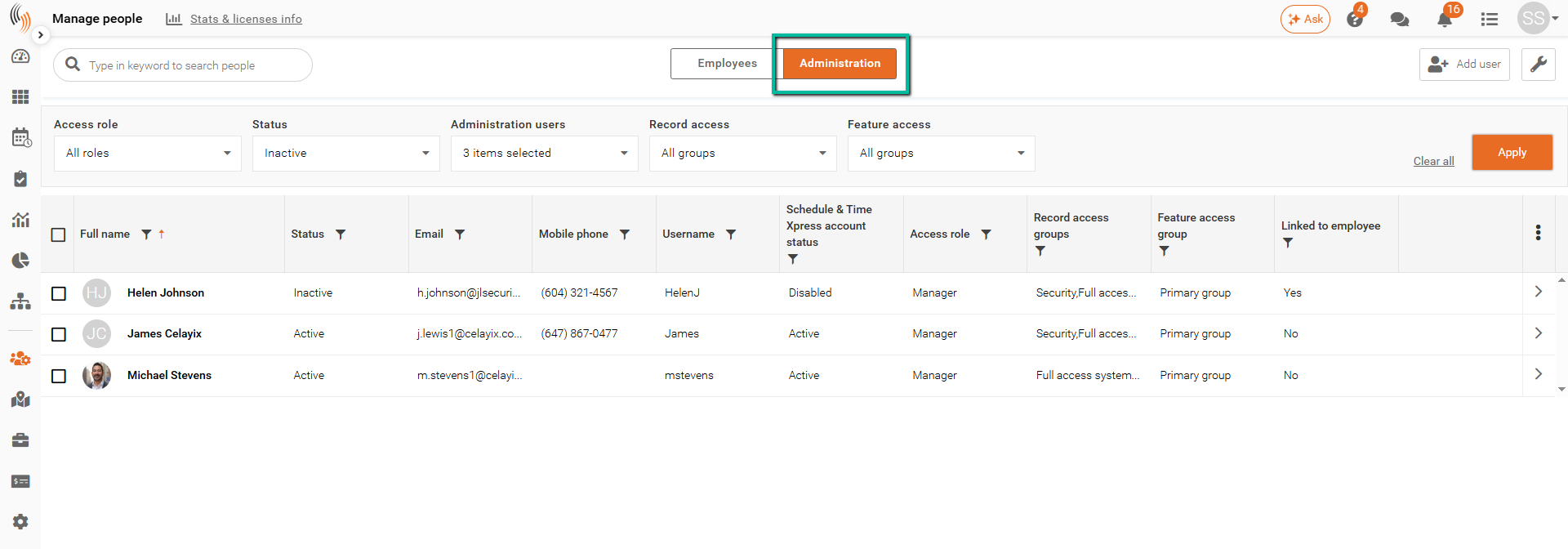
Step 1 - Reactivate an Administrator
- Use the Status dropdown to filter for Inactive administrators, then locate and select the administrator you want to reactivate.
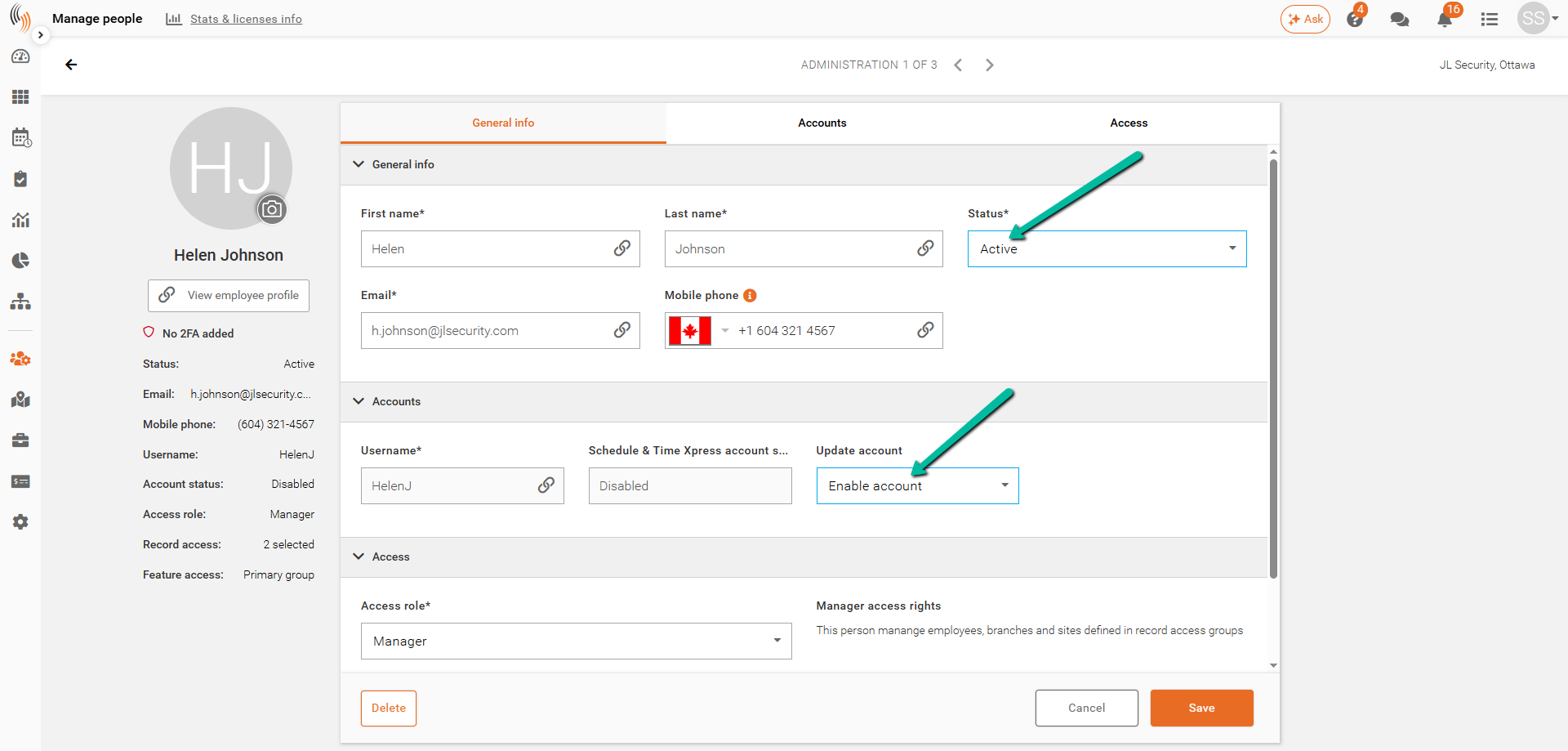
- Open their profile and click Edit User in the top right corner.
- Change Status from Inactive to Active.
- Under Update Account, click Enable, then Save.
Step 2 - Send a Reactivation Invitation
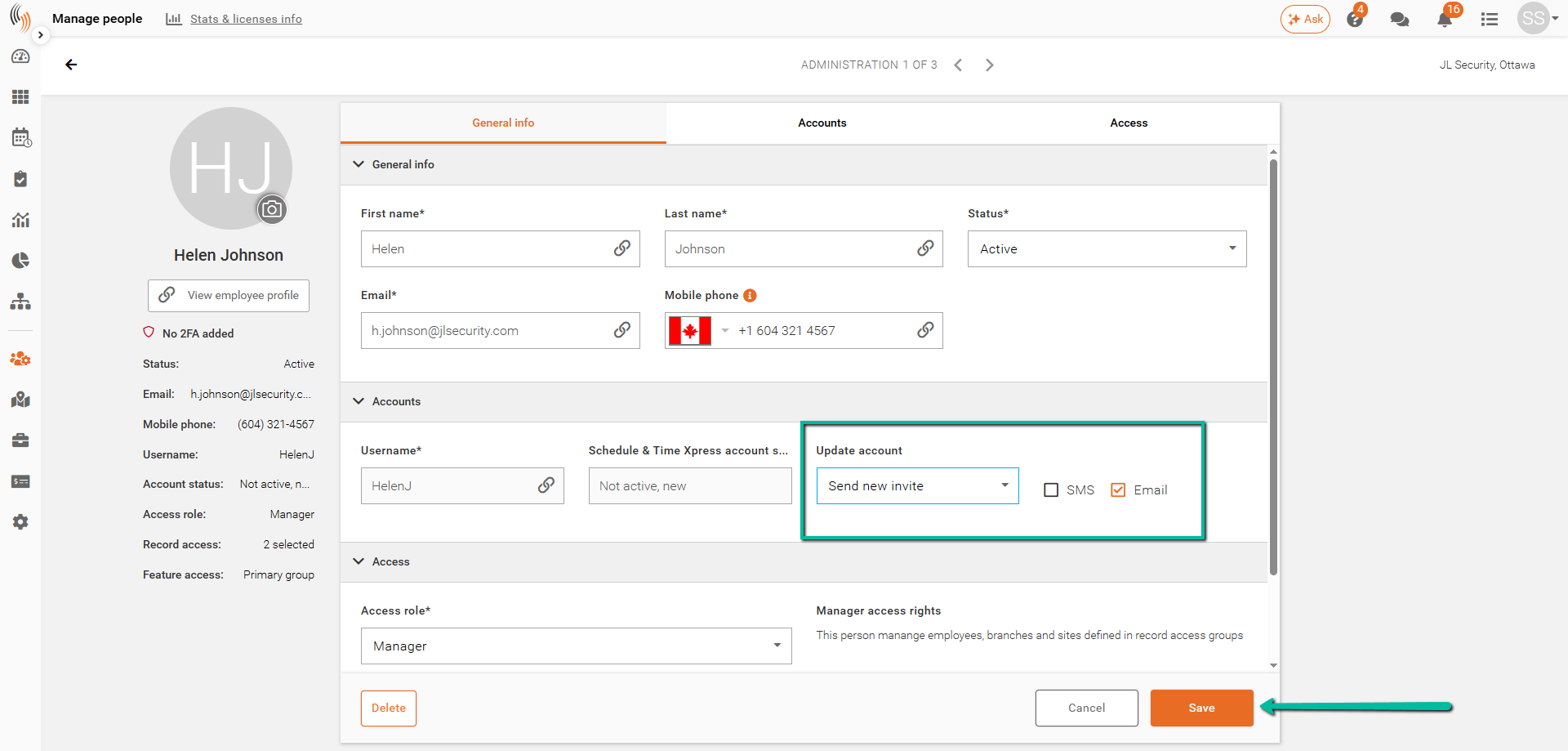
To send an invitation:
- Click Edit User to reopen the administrator’s profile.
- Under Update Account, click Send New Invite.
- Choose to send the invitation by Email or SMS. SMS is available only if you have an SMS package.
- Click Save.
The administrator will receive an invitation to reactivate their account. Once they complete the activation process, they can sign in to Schedule Xpress.
Important: Changing the status to Active alone does not fully restore access. You must also enable the account and send a new invitation.
Tip: If the administrator does not receive the invitation, confirm that the email address or mobile phone number in their profile is correct. For email invitations, ask them to check their spam or junk folder.